How to Remove a Video Background Without a Green Screen

2026년 9월 19일

How to Remove a Video Background Without a Green Screen

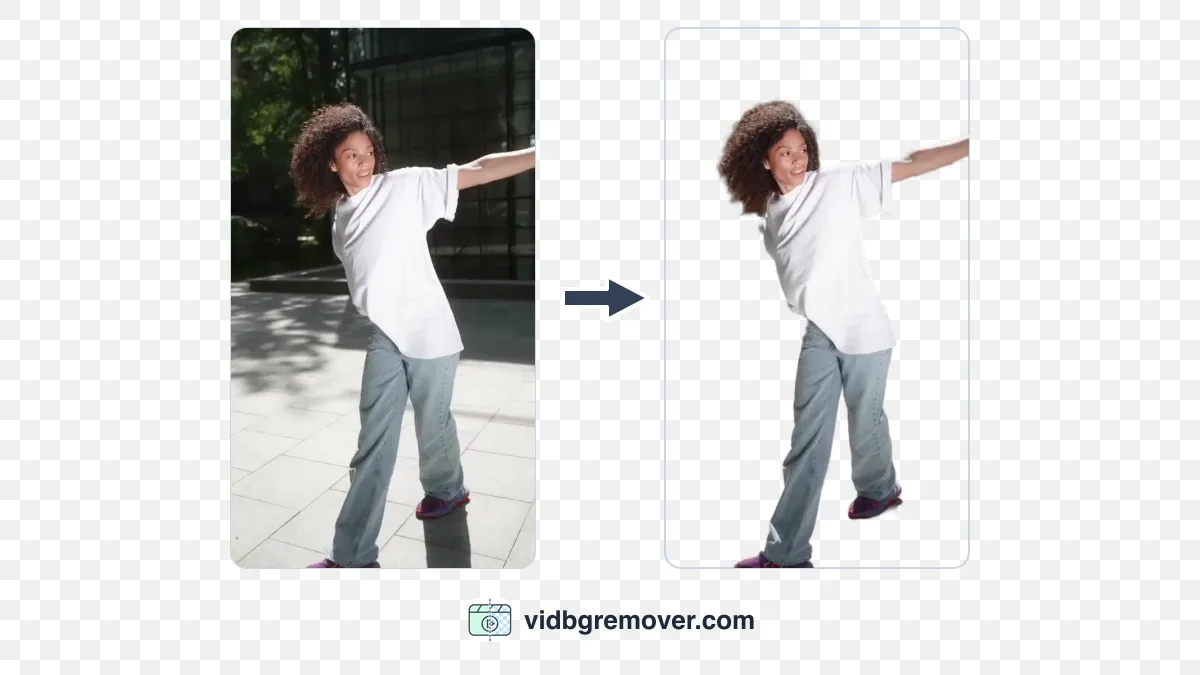
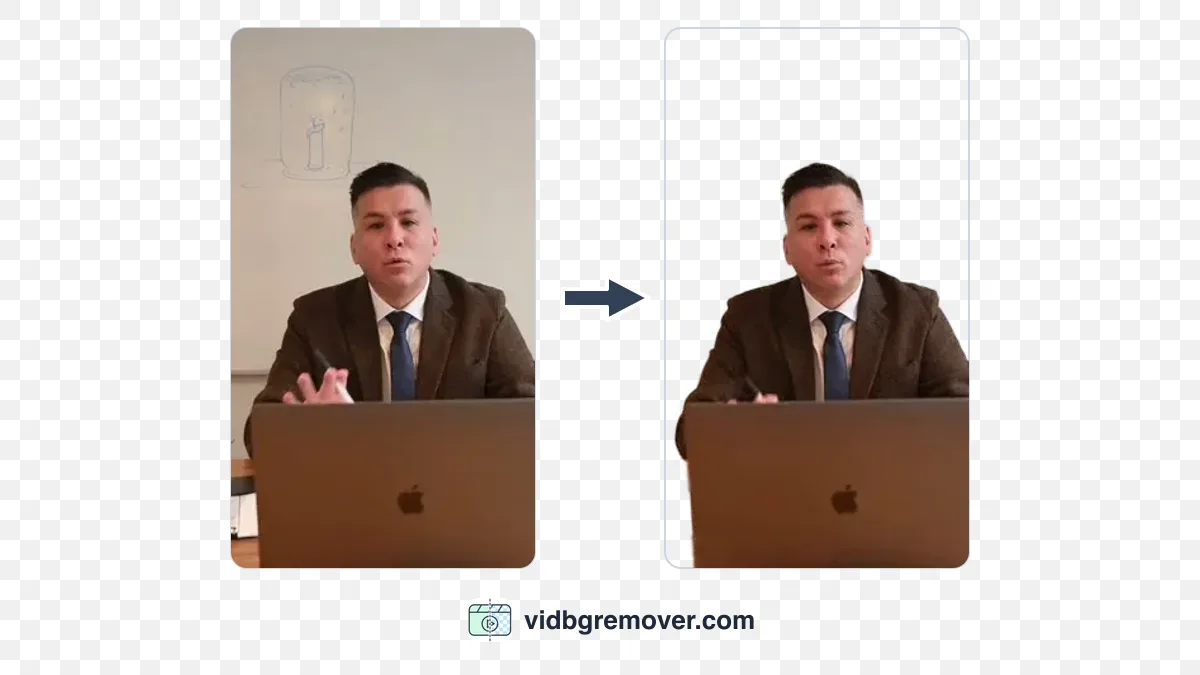
Removing a video background used to mean filming in front of a green screen, learning chroma keying, or drawing masks frame by frame. That is still one way to do it, but it is a poor fit when the footage has already been shot in a bedroom, office, or street.

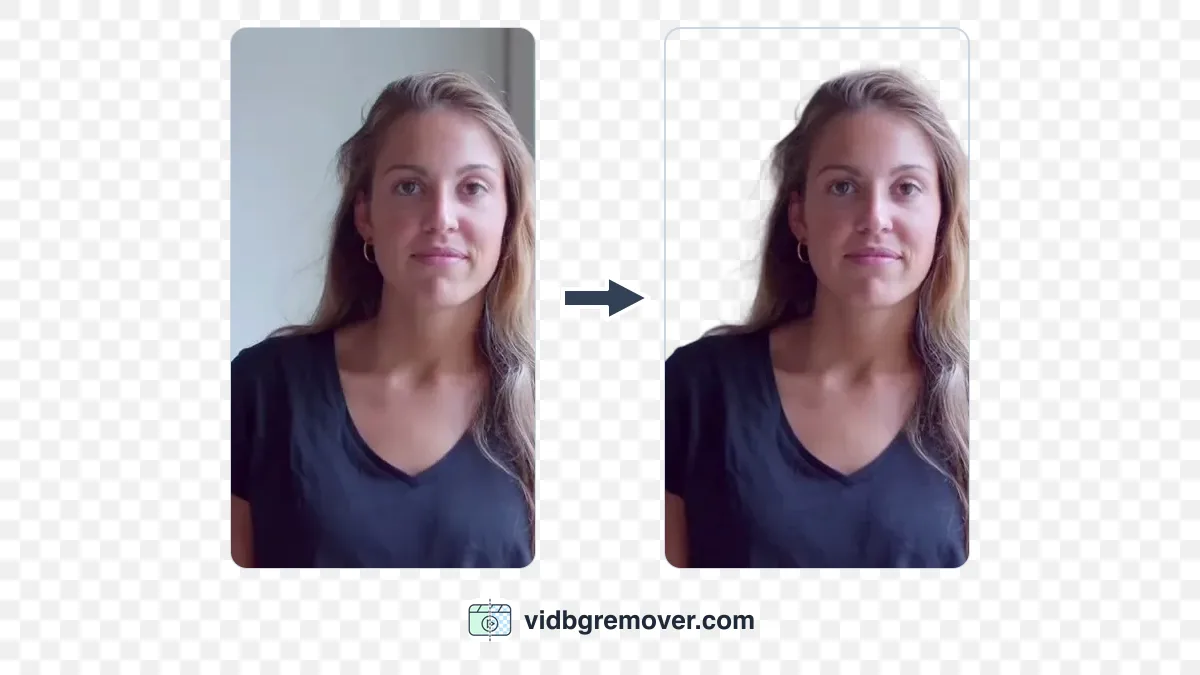
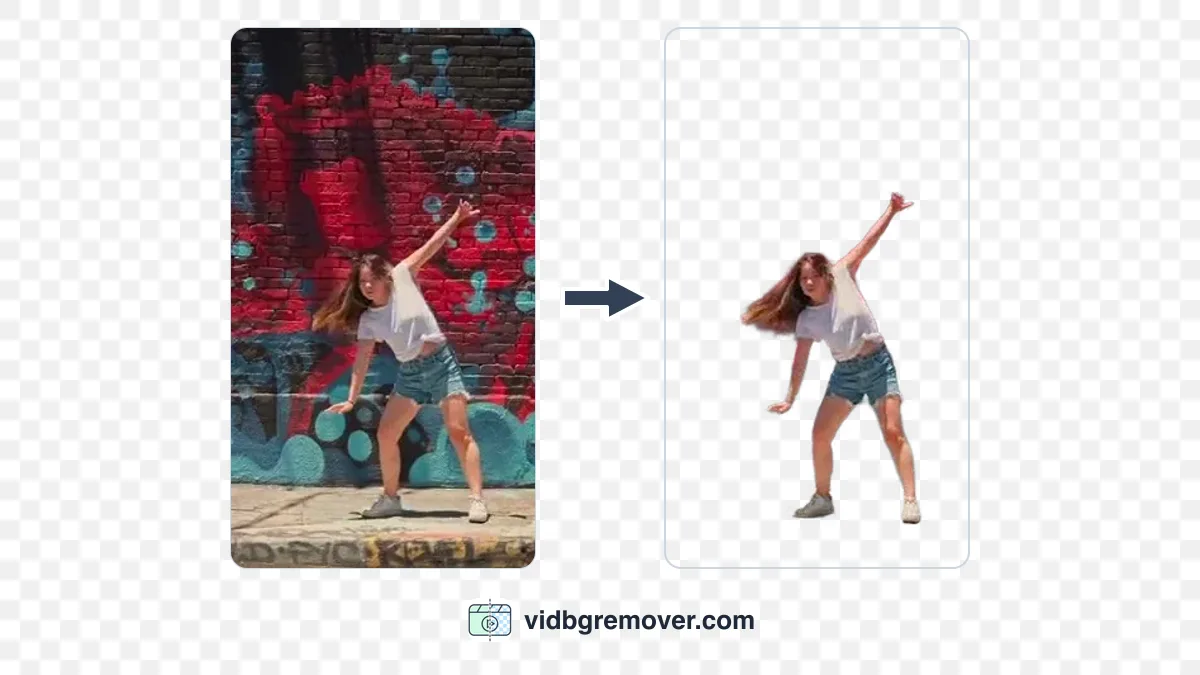
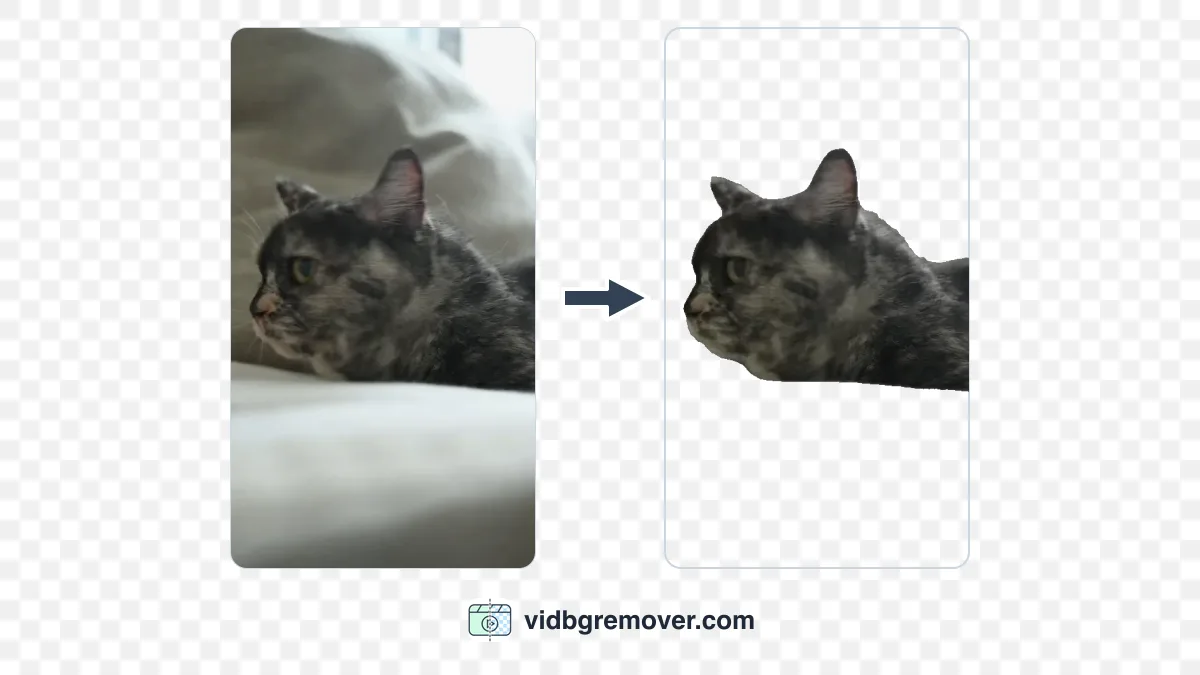
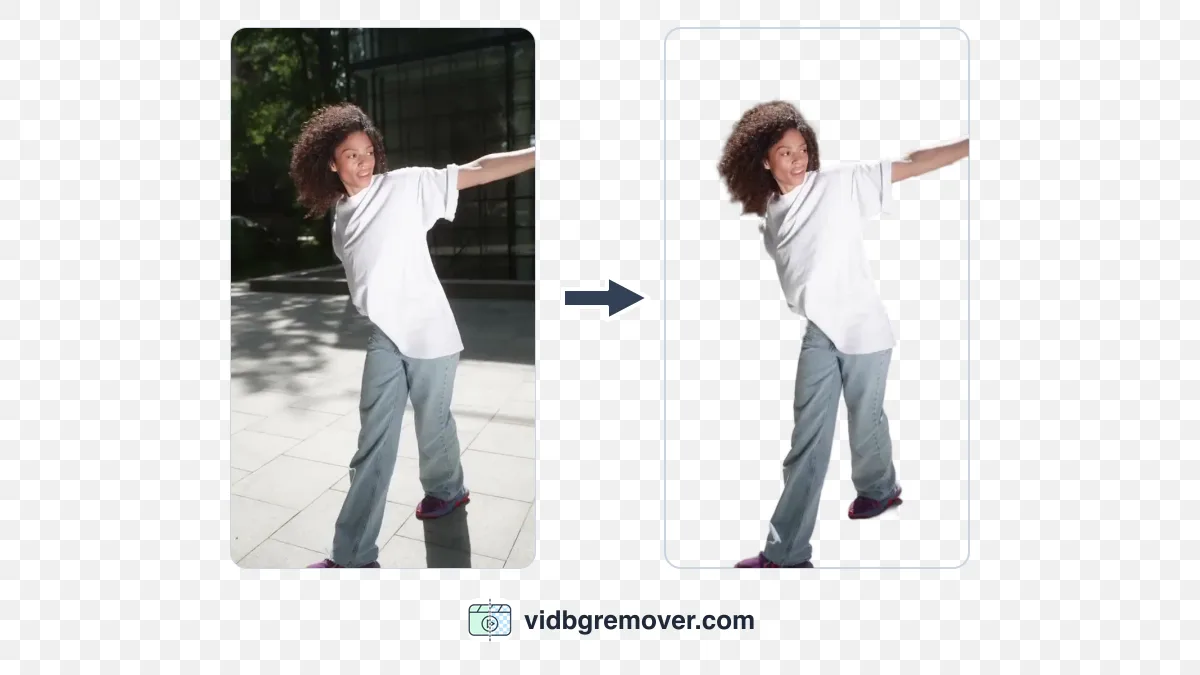
You can now upload ordinary footage to an AI video background remover, let it identify the subject, and work with the cutout without rebuilding the scene around a green wall.

The workflow is short:

  1. Upload your video.
  2. Let the AI remove the background.
  3. Export a transparent result or replace the background.

The three clicks are easy. The source footage, the output format, and a few difficult frames decide whether the result is ready to use.

What You Need Before You Start

Before you upload anything, look at the footage and decide what file you need at the end. You do not need a studio, but the original video still matters.

AI background removal usually has an easier job when:

  • The subject is visible from beginning to end.
  • The subject has a reasonably clear outline.
  • The lighting is consistent.
  • The video has limited motion blur.
  • The background does not share too many colors with the subject.
  • The camera is not shaking severely.

A talking-head clip recorded in a well-lit room is generally easier to process than a dark, heavily compressed video with fast movement. The footage does not need to be perfect. It needs enough visual information for the tool to distinguish the subject from everything behind it.

It also helps to decide what you want to do with the result. Do you need a genuinely transparent video for an editor? Do you want to place the subject over a new image? Are you making a short social clip, a product demonstration, or a presentation?

That choice determines which output format and background style to use.

How to Remove a Video Background in 3 Steps

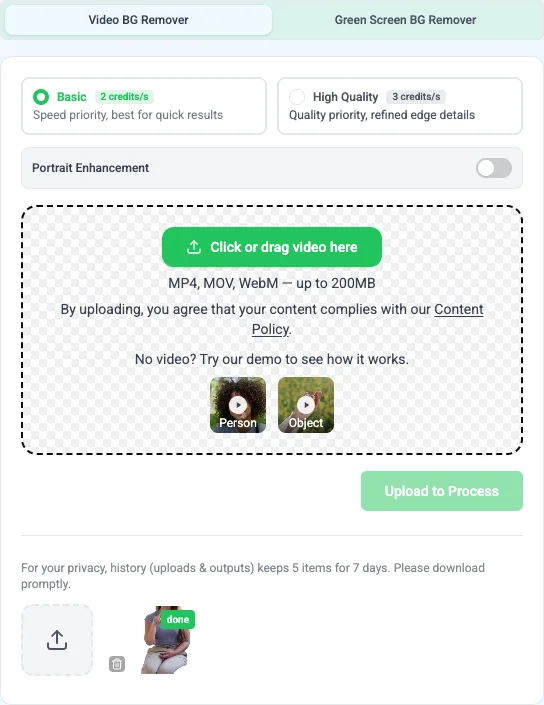
1. Upload your video

Upload the original video to an AI background removal tool. Common input formats include MP4, MOV, and WebM, although file-size and duration limits vary.

If the original clip contains several minutes of footage but you only need a short section, trim it first. A shorter clip is easier to review and avoids processing footage you will not use.

Before you submit the file, check the parts most likely to cause trouble:

  • Is the subject visible throughout the clip?
  • Do the hands or face leave the frame?
  • Does another person pass in front of the subject?
  • Does the background change sharply?
  • Does the subject become blurred during fast movement?

You do not need to fix every problem before uploading. Mark the sections you will want to inspect later.

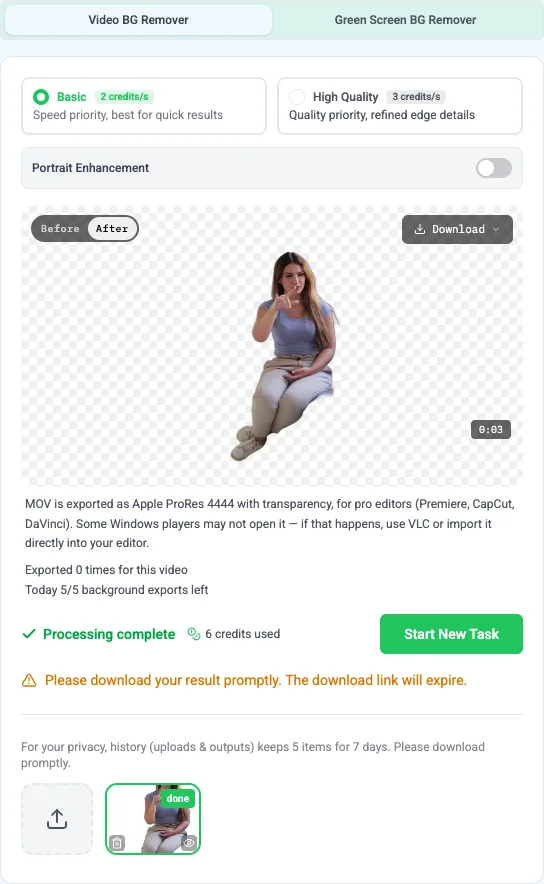
2. Let the AI remove the background

Most AI background removers try to separate the main subject without asking you to draw a mask. When processing finishes, do not judge the result from a single still frame.

Scrub through the whole video and check:

  • Loose hair and fine strands
  • Fingers, hands, and shoulders
  • Fast movement
  • Shadows and reflections
  • Objects passing in front of the subject
  • Semi-transparent objects such as glass or smoke

A clean still image does not guarantee a clean video. The mask can flicker as the subject moves, so watch the edges while the clip is playing.

If the tool offers a higher-refinement option, it may help with difficult edges. It can also take longer or consume more credits, so trimming the video first is still worthwhile.

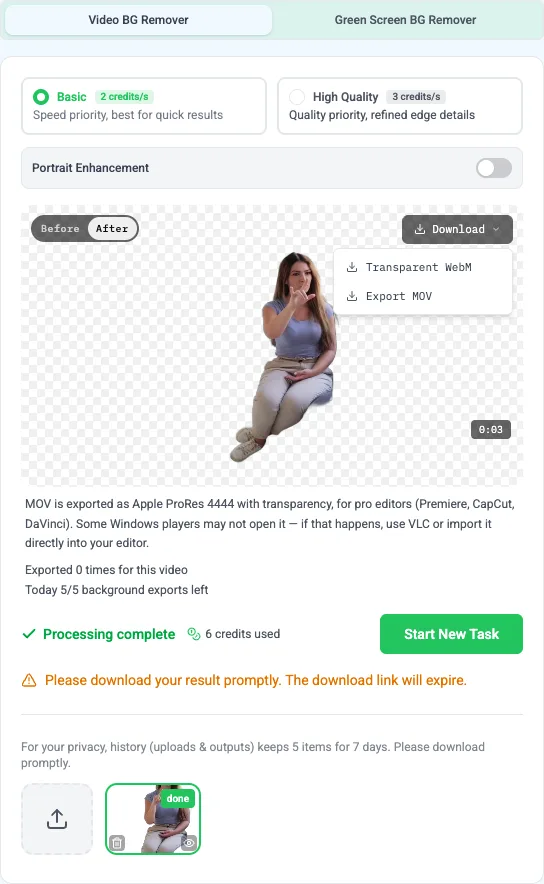
3. Export or replace the background

Once you have reviewed the result, choose the file that matches the next step in your workflow.

Choose the export format carefully

MP4 is widely supported, but it cannot carry a transparent alpha channel. If a removed-background clip is exported as MP4, the transparency has to be replaced with a color or another background. It is no longer a transparent video.

For real transparency, use WebM (VP9) with alpha for web workflows, or MOV using ProRes 4444 when your editing software supports it. VidBG Remover exports both formats, so you can start with the video background remover and choose the file for the job instead of converting a transparent clip into MP4.

Windows adds one more compatibility trap. A .mov file can be perfectly valid and still fail to open in the default Movies & TV or Media Player app because the app may not include a ProRes decoder. Try VLC, or import the MOV directly into CapCut, Premiere, or DaVinci Resolve. The most reliable test is to place the clip over a colored background inside the editor. If you see the color through the subject's transparent area, the alpha channel is working.

A video with a green, black, or gray fill is not the same as a transparent video. A media player may show transparent pixels as black, so use an editor or a compatible viewer when you check the result.

Green Screen and Ordinary Backgrounds Are Different Workflows

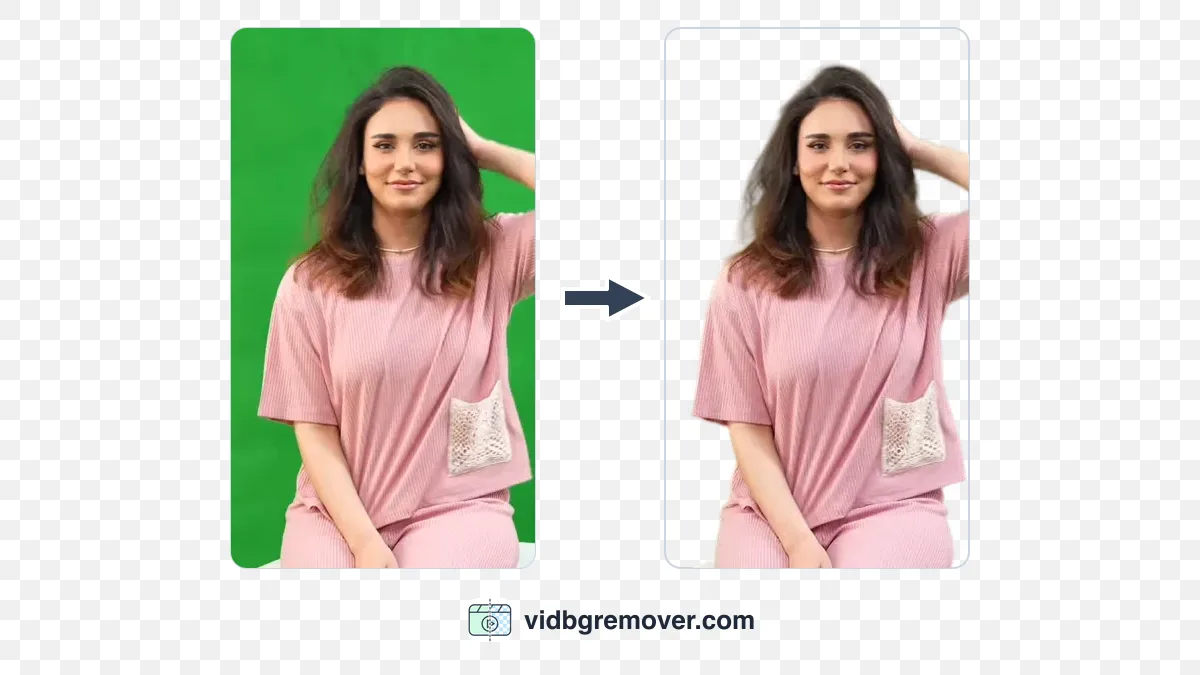
AI subject separation works on ordinary backgrounds, but green-screen footage still has a place.

Ordinary-background removal is useful when you have already recorded the video in a room, office, street, or temporary setup. It can save you from reshooting just to create a cleaner background.

Green-screen removal is more controlled when the footage was deliberately shot against a green backdrop. If you already have green-screen footage, use a dedicated green screen background remover. If you need chroma-key controls for a solid-color background, the video chroma key remover is the more relevant workflow.

Choose the workflow based on the footage you already have. A transparent output does not require a green-screen input; a green-screen tool is for footage that was recorded for keying.

How to Get Cleaner Results

Improve the contrast between the subject and the background

A person wearing a dark shirt against a dark wall is harder to separate than a person with a clear difference in brightness or color.

If you can reshoot, move the subject away from the wall and avoid patterns that resemble the subject's clothing. A plain background is helpful, but it does not have to be green.

Use consistent lighting

Uneven lighting creates confusing edges. Strong shadows can make part of the subject look like background, while bright highlights can make the outline less clear.

Try to avoid a bright window directly behind the subject, flickering lights, and a face that is much darker than the background. Even light will not guarantee a perfect mask, but it gives the AI a clearer shape to follow.

Reduce motion blur

Fast movement is one of the common causes of rough edges and flickering. If you are recording new footage, use enough light and avoid unnecessary rapid movement. If you are working with an existing clip, trim the most blurred section or try a higher-quality processing option when one is available.

AI can follow a moving subject, but it cannot recover edge information that the camera never captured.

Keep hair, fingers, and transparent objects in mind

Loose hair, thin fingers, veils, glass, smoke, and motion-blurred objects are difficult because they do not have a simple solid outline.

In that case, clean up the edge in an editor, choose a simpler replacement background, or use a manual mask for a few frames. Some source details are difficult to classify automatically.

Avoid unnecessary compression

Upload the original file when possible. Repeated exports through messaging apps or social platforms can create blocky edges and remove detail.

Higher resolution can preserve more edge information, but it also creates larger files and may increase processing demands. A clean 1080p source is often more useful than a heavily compressed 4K file.

Which Background Should You Choose?

The right output depends on what you plan to do after removal.

Use case A practical choice
TikTok, Reels, or Shorts An image, video, or simple color background
Product demonstration White, neutral, or brand-color background
Talking-head video A room image, virtual background, or soft blur
Online course or presentation A transparent subject over slides
Editing and compositing Transparent video with an alpha channel
Meme, sticker, or chat content A transparent GIF or short transparent clip

Transparent output gives you the most flexibility, but the editor or platform must support transparency. A solid background is often easier for a quick social post. For product videos, a simple white or brand-colored background can be more useful than a complicated scene.

If the project is a short loop or sticker, the GIF background remover may be a better fit than exporting a full video.

When AI Background Removal Struggles

Results may be less accurate when the video contains:

  • Motion blur
  • Very dark lighting
  • A subject and background with similar colors
  • Heavy shadows or reflections
  • Transparent or semi-transparent objects
  • Multiple people overlapping
  • Fast camera movement
  • Strong compression artifacts

Start with the smallest fix: trim the difficult section, upload a cleaner source, improve the contrast, or choose a higher-refinement mode if the tool provides one.

If the subject remains difficult to separate, manual masking or a green screen may be the better choice. AI reduces repetitive work; it does not make unsuitable footage easy to key.

Common Problems and Fixes

The edges look jagged

This often appears around hair, hands, or high-contrast outlines. Try a higher-quality processing mode, a better source file, or a replacement background that does not make the edge problem more obvious.

The subject flickers

Flickering means the mask is changing from frame to frame. Look for fast movement, shadows, or objects crossing the subject. Trimming the unstable section may be more useful than processing the whole video again.

Part of the subject disappears

Dark clothing, fast movement, and similar colors can cause the AI to classify part of the subject as background. Better lighting, a different source clip, or manual correction may be necessary.

The exported video still has a green or black background

The file may not contain an alpha channel, or the player may not know how to display it. MP4 cannot store transparency. Check the export settings, then test a WebM or MOV in an editor that supports alpha. On Windows, try VLC or import the MOV into CapCut, Premiere, or DaVinci Resolve.

The video looks worse after export

Background removal does not automatically require a large quality loss. The result can degrade when the export resolution, bitrate, or codec is lower than the original. Keep the output settings close to the source and your final delivery requirements.

FAQ

Can I remove a video background without a green screen?

Yes. AI background removal can separate a subject from an ordinary room, outdoor scene, or other background. The result is usually easier to refine when the subject is well lit and clearly separated.

Can I make a video background transparent?

Yes, but the export must support real transparency. MP4 cannot store an alpha channel. Look for WebM (VP9) with alpha or MOV using ProRes 4444 rather than a green, black, or solid-color fill.

Can AI remove the background from a moving object?

It can process many moving subjects, but fast movement, motion blur, overlapping objects, and poor lighting can reduce accuracy. Review the entire clip instead of checking only the first frame.

Does removing a background reduce video quality?

It does not have to. Quality depends on the source file and export settings. Re-encoding, downscaling, or using a highly compressed format can reduce detail.

Why does the MOV file not open on my Windows computer?

The MOV may use ProRes 4444, which carries the alpha channel but is not supported by every default Windows player. Try VLC, or import the file into CapCut, Premiere, or DaVinci Resolve. Check transparency over a background layer in the editor instead of relying on a black preview.

Why can I not export a transparent video as MP4?

MP4 does not support an alpha channel. Use WebM for web workflows or MOV with ProRes 4444 for compatible editing software.

Do I still need a green screen?

Not for every project. A green screen remains useful when you need controlled edges, repeated production, or a workflow built around chroma keying. For many talking-head, product, and social videos, AI can remove the need for one.

The first thing to check after downloading is not the filename. Put the clip over a background layer and confirm that the software can read its alpha channel.

동영상 배경을 지울 준비가 됐나요?

클립을 올리면 몇 분 안에 투명 WebM 또는 MOV를 받을 수 있습니다. 그린스크린은 필요 없습니다.

배경 제거 시작
동영상 배경 제거