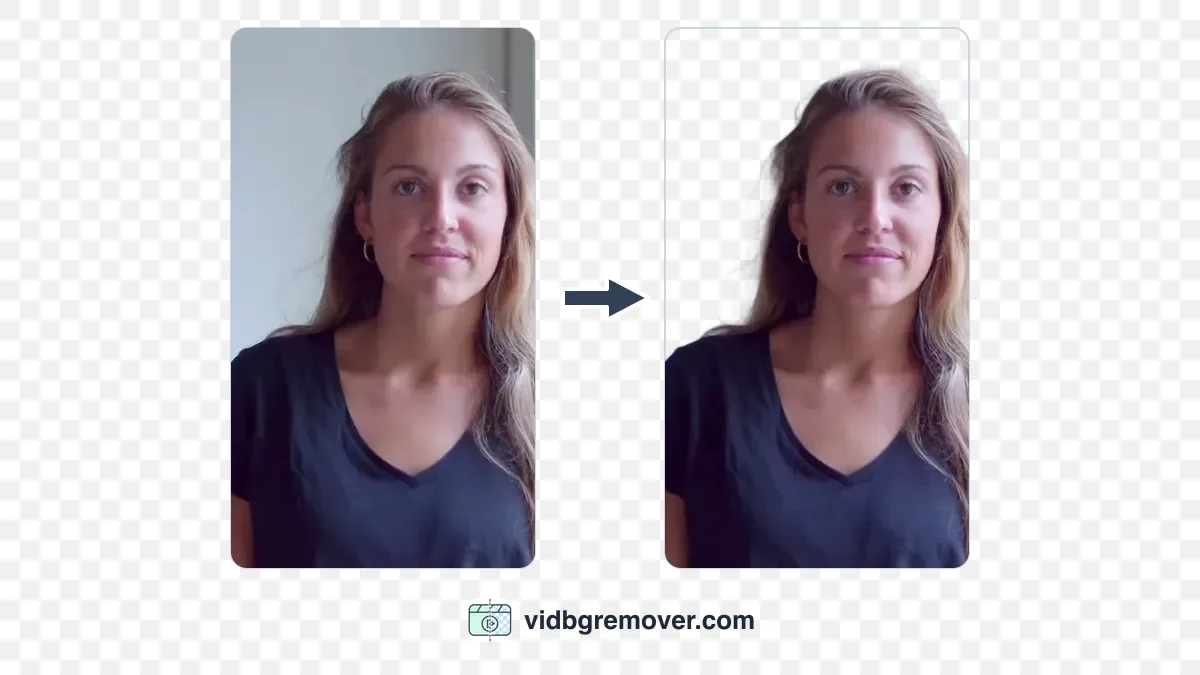
To put yourself over a screen recording without a webcam box, remove the background from a separate camera clip, export it with transparency, and place it above the screen capture in your editor. The screen shows through around your body. You can then resize the presenter or hide that layer when the lesson needs the whole frame.
For a recorded course, the practical sequence is: record the screen and camera separately, synchronize and edit them together, remove the camera background from the sections you keep, then composite and export the lesson. Use VidBG Remover for the cutout, then bring the transparent MOV into CapCut, Premiere Pro, DaVinci Resolve, or Final Cut Pro. Record the screen and camera separately so you can move the presenter without moving the lesson behind them.
Before you make a transparent presenter overlay
Check what you already have. If the webcam box is baked into the only screen recording, moving it later will leave a gap where the interface was covered. Background removal cannot recover those hidden pixels. Look for the original screen and camera files before starting again.
A transparent presenter overlay also needs room for the person. The room behind you disappears; your shoulders and hands still cover the lesson. For a spreadsheet demonstration, try the presenter on the side opposite the active cells, then open the menus you'll use. If every position blocks something, keep that passage screen-only. You can bring the presenter back for the introduction or a slide explanation.
Choose the file for the next step:
| What you need | File to use | What to check |
|---|---|---|
| A movable presenter layer in an editor | MOV with ProRes 4444 and alpha | Import a short sample and put a colored layer underneath |
| A transparent presenter on a webpage | WebM with alpha | Test the file in the actual browser and embedded player |
| A finished lesson for viewers | H.264 MP4 from the editor | The screen and presenter are combined; transparency is no longer needed |
MOV is a container, so the extension alone doesn't guarantee transparency. Apple documents ProRes 4444 and 4444 XQ as the ProRes variants that support alpha. VidBG Remover's MOV export uses ProRes 4444.
1. Record a camera layer you can move later
Use your usual screen recorder and camera, provided they give you separate recordings or editable tracks. Adding a webcam source to a recorder doesn't necessarily save it separately; check the output before recording a full lesson.
Leave space around your head and hands. A hand cut off at the edge of the camera frame will still be cut off in the presenter overlay. Light your face and shoulders evenly, avoid a bright window behind you, and choose clothing that stands apart from the wall.
Record microphone audio with the screen capture, and let the camera record reference audio too. Once both are running, clap once within view of the camera. Both recordings then contain the same sound for synchronization. If you use a separate audio recorder, it should capture that clap as well. You don't need a separate microphone file if the narration in your screen recording is already usable.
Make a short test that includes talking, turning your head, and your usual hand gestures. Take it through background removal and import the MOV into your editor. This checks both the cutout and the file compatibility before you commit to a whole course.
2. Synchronize and cut the lesson together
Build the edit with the original camera footage first. Put the screen recording on the base video layer, the camera above it, and your chosen narration on an audio track. Match the clap in the reference waveforms, then check lip movement. Keep only the chosen narration audible to avoid an echo.
Link or group the synchronized clips so cuts move the screen, camera, and narration together. When you remove a false start, remove the matching section from all three. Cutting the screen first while leaving the camera untouched makes later synchronization harder.
Once the lesson's timing is settled, mark the sections that need a presenter overlay. Export only their camera footage, with the same start, end, and playback speed as the corresponding edit. Hide the screen and graphics when exporting these camera-only clips, then restore them. Keep a duplicate of the edited camera clips in a backup timeline before replacing them with transparent versions.
For example, a twelve-second passage from three minutes into the original take might now begin at 00:45 in the edited lesson. Its transparent replacement belongs at 00:45. A descriptive filename and a timeline marker preserve that connection; the original take's timestamp alone doesn't.
Keep each upload within the tool's limits. VidBG Remover currently accepts MP4, MOV, or WebM video up to 200MB and 60 seconds per file for signed-in users. For longer passages, divide the camera track at natural pauses and keep a placeholder for each piece.
3. Remove the camera background and export MOV
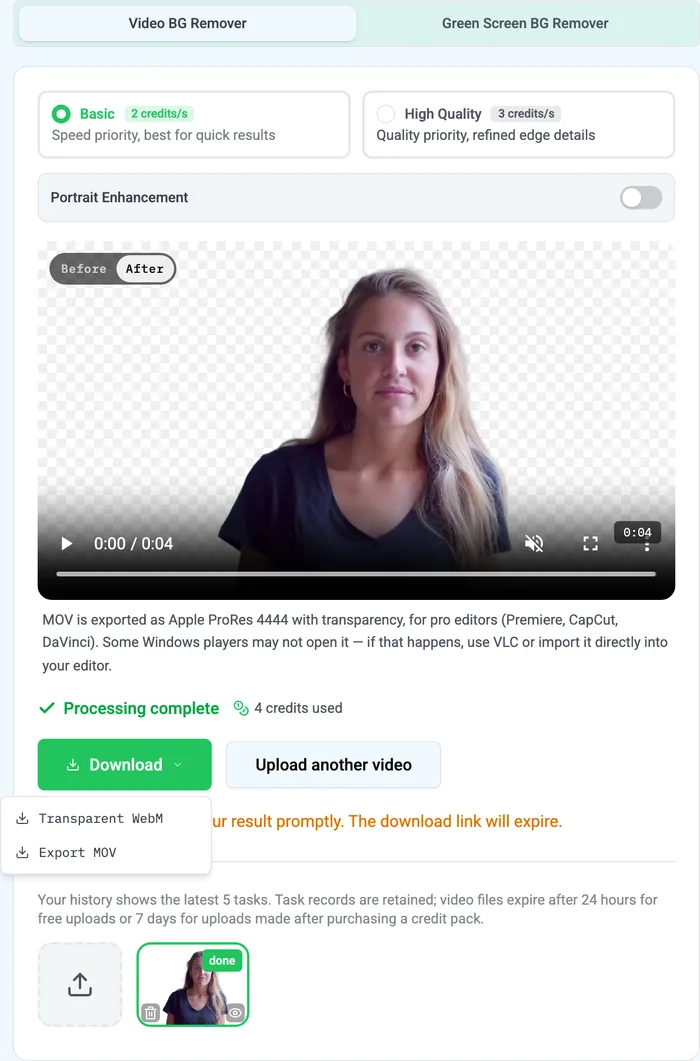
Open VidBG Remover and upload a camera-only clip. The browser interface lets you use the tool on another computer without installing dedicated removal software; your editing project and source files still need to be available separately.
Process the clip, then play the full preview. Watch hair during head turns, fingers during gestures, glasses, and clothing close in color to the room. Fast movement and motion blur can leave broken edges or missing detail. If needed, try High Quality or Portrait Enhancement, but judge the new result rather than assuming a setting will fix it.
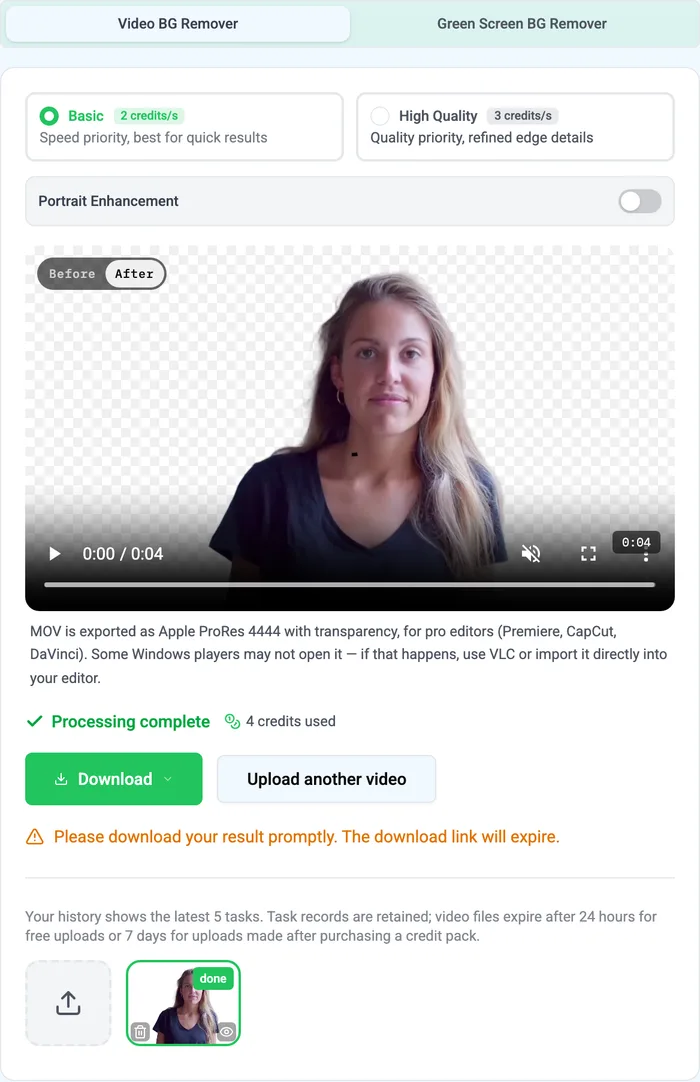
Download the transparent MOV for this editing workflow. Keep the narration in your project as the audio source. Background removal prepares the visual layer; it doesn't synchronize the lesson, clean up the narration, or create captions.
4. Place the presenter overlay above the screen
Import the transparent MOV and place it above the screen recording, at the same start point as the camera segment it replaces. Hide or remove the original camera segment from the active edit so its background doesn't show through the cutout. Check the replacement's duration against your backup timeline, and mute any audio attached to the MOV so the narration doesn't play twice.
The screen recording shows through the transparent areas around the presenter. Use your editor's size and position controls to fit the person beside the lesson:
| Editor | Place the presenter above the screen | Resize and position |
|---|---|---|
| CapCut (desktop) | Drag the MOV onto a track above the screen recording. The imported clip already has transparency; leave background removal off. | Select the clip, adjust its scale, and drag the presenter into place in the preview. |
| Adobe Premiere Pro | Put the screen recording on V1 and the MOV on V2. | Open Effect Controls → Motion and adjust Scale and Position. |
| DaVinci Resolve | On the Edit page, put the screen recording on V1 and the MOV on V2. | Select the MOV and use Inspector → Transform to adjust Zoom and Position. |
| Final Cut Pro (Mac) | Keep the screen recording in the primary storyline and add the MOV as a connected clip above it. | Use Transform in the viewer or the Video inspector to adjust Scale and Position. |
These are the same basic layer operations in each editor. Adobe's compositing guide and Apple's alpha-channel guide explain how transparent clips reveal the footage underneath. For the controls, see CapCut's overlay walkthrough or DaVinci Resolve's editing guide.
Play the entire operation, including dropdowns and tooltips. Add or adjust captions and callouts with the presenter visible so they don't compete for the same area.
When a menu fills that corner, split the overlay at the appropriate points and disable that segment. Leave the screen and narration running. If you delete a segment instead, avoid a ripple delete that shifts later clips. Move the presenter between sections when necessary, rather than making them jump across the screen during an operation.
5. Check the composite and export the lesson
Review the presenter overlay in motion over the actual lesson, at the size viewers will see. A small edge defect can look different over a white slide, a dark interface, and a busy screen. Check a short export on a phone as well as in your editing monitor.
| Problem | Check | Next action |
|---|---|---|
| Black rectangle around the presenter | Put a colored matte directly below the MOV in the editor | If the color shows through, transparency works there. If it doesn't, confirm you imported the transparent download and that the editor reads its alpha |
| Halo, missing hair, or broken fingers | Compare the affected moment over light and dark backgrounds | For a fringe, check alpha interpretation; for missing detail, compare the source and processed clip. Try another take or use the original camera frame for that passage |
| Speech and lips drift apart | Compare the replacement with its placeholder at the beginning and end | Check the start point, duration, and any speed changes; if the original is also out of sync, correct the source edit |
A black preview in a standalone player doesn't diagnose a failed export. Test transparency by compositing it. Avoid keying out black to repair the file: that can also remove dark hair and clothing.
Export the combined screen, presenter, captions, and narration as an ordinary H.264 MP4, using your course platform's requirements. Keep the transparent MOV for future edits. If the presenter must sit over a webpage rather than inside a finished lesson, use the transparent WebM and test the target player separately. The transparent-video guide covers that format choice in more detail.
Save the screen and camera originals, narration, transparent clips, and editor project together. When a course changes, you can replace one screen segment if its timing still matches the explanation. If the narration or timing changes, revise the corresponding presenter overlay too.
When a simpler layout will do
A presenter overlay is useful when you need an independently movable person above changing lesson material. For a speaker over one fixed image or color, the video background changer can produce the combined, opaque MP4 without a separate compositing step.
If your footage was recorded against a green screen, start with the green screen background remover. It uses AI to remove the green backdrop and is tuned for that footage.
For dense code, terminal output, or a full-screen dialog, a screen-only section may be the clearest layout. Keep the narration and hide the presenter until there is room again.