
Does a video you expected to be transparent open with a black background? That does not always mean the background removal failed. The player may be showing transparent pixels as black, the export may have flattened them, or the app may not support the file's codec.
Removing a background and making a usable transparent video are related, but they are not the same task. Removal isolates the subject. A reusable transparent file also needs an export format that preserves alpha and an app that can read it.
To finish the job, start with an isolated subject, export an alpha-compatible format, and test the file in the app where you plan to use it. If you still need to remove the original background, follow How to Remove a Video Background Without a Green Screen.
The source format and the export format can be different. You can start with an MP4, for example, and download a transparent WebM or MOV.
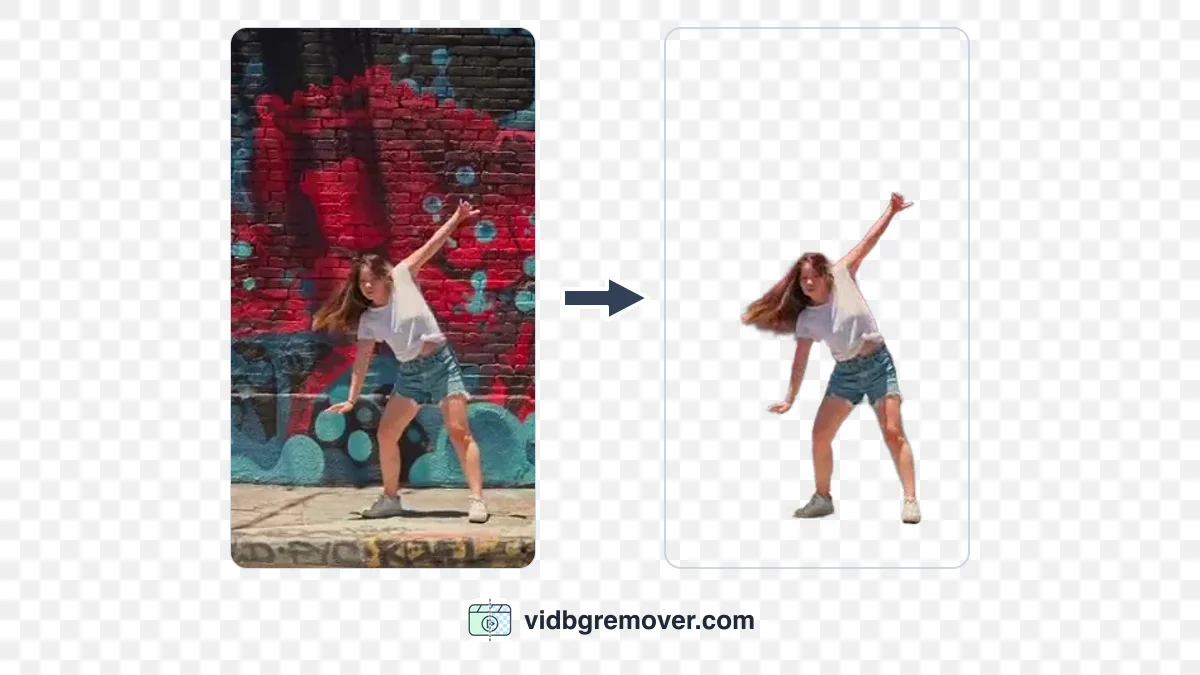
How Transparency Works in Video
A transparent video has an alpha channel: information that tells a compatible player which parts of each frame are visible and which parts let the background show through. A checkerboard in an editor usually represents those transparent pixels; it is not part of the video.
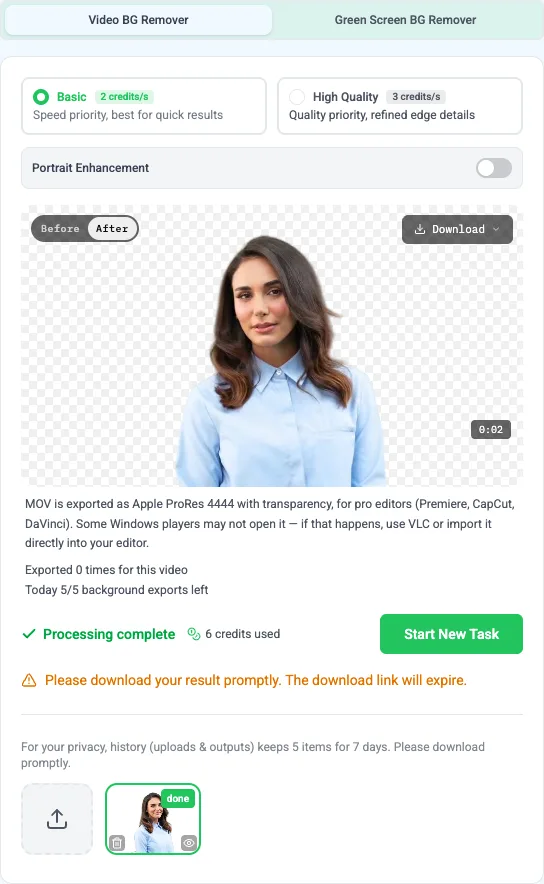
Transparency can fail at three points. The cutout may still include parts of the original background; the export can flatten transparent pixels against a solid color; or the receiving app may not read the alpha channel or may convert the file on import. That is why the file extension and a good-looking preview are not enough to confirm the result.
Choose an Export Format for Transparent Video
Pick a format your next app can use. The best choice depends on where the clip is going.
| Format | Good fit | Keep in mind |
|---|---|---|
| Transparent WebM | Web pages and apps that support alpha video | Check playback in the target browser or editor. WebM video can carry alpha transparency, but the receiving app must support it. |
| Transparent MOV (ProRes 4444) | Editing and compositing in software that supports ProRes 4444 | Apple's ProRes 4444 documentation describes alpha-channel support. Some basic media players may show a black background instead of transparency. |
| Transparent GIF | Short loops, chat assets, and stickers | GIF transparency has hard edges rather than smooth partial transparency, so fine hair and soft shadows can look rough. |
| MP4 | A finished clip with a new background already added | In this workflow, MP4 is an input or a flattened final video. Choose WebM or MOV when the area around the subject must stay transparent. |
If the clip is for a web page, start with WebM. For an editing timeline, use MOV if your editor supports ProRes 4444. For a short sticker or loop, try the GIF background remover. If you only need a new fixed background, use the video background changer and export a regular MP4.
Source Requirements for Transparent Video
The video background remover accepts MP4, MOV, and WebM files up to 200 MB. Signed-in users can process clips up to 60 seconds. If your source is longer, use the trim dialog to select the section you need.
If the clip still has its original background, remove it before choosing an export format.
Make a Transparent Video from a Cutout
1. Prepare a Clean Cutout for Transparent Export
If the background has not been removed yet, upload the clip to the video background remover and process it. You can skip this step if you already have a clean cutout.
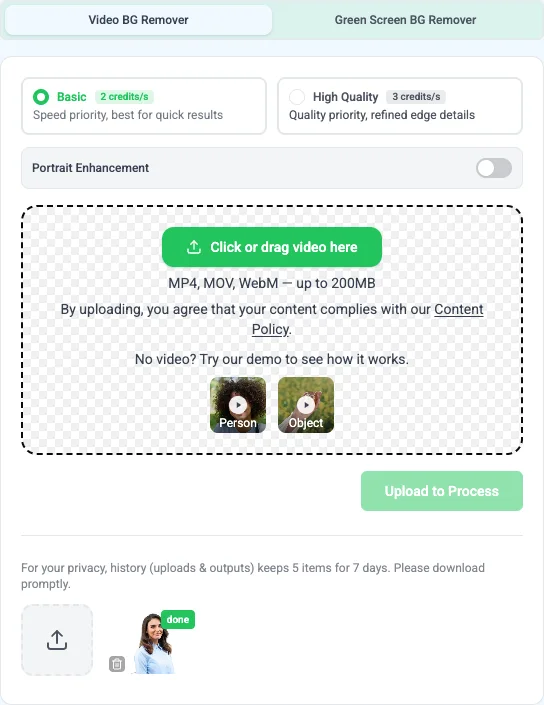
2. Export an Alpha Channel with WebM or MOV
Open the download menu and choose Transparent WebM for a web workflow. To make a MOV, choose Export MOV and wait for the conversion to finish before downloading Transparent MOV.

If you need a GIF, use the GIF background remover and keep the clip short. If you want to share a normal MP4, add a background first with the video background changer; that output is meant to have a complete scene, not a transparent area.
3. Test Video Transparency in the Destination App
Import the downloaded file into the browser, editor, or presentation where you will use it. Put a colored layer or image behind the video. If the layer shows through around the subject, the transparency is working in that app.
Test the final destination before finishing a larger edit. An editor can preserve alpha while a social platform may convert the upload to a regular video.
Troubleshoot Transparent Video Problems
Transparent Video Appears with a Black Background
Some players do not display alpha correctly. Import the file into an editor that supports the selected format and place it over a colored background. If the color shows through, the file is transparent even if the basic preview looked black.
A Checkerboard Is Baked into the Transparent Video
The checkerboard may have been baked into the video rather than used as a preview. Try the transparent WebM or MOV download from the export menu, then test it over a background layer. A checkerboard that shows up in every app is in the image itself, not real transparency.
Rough or Flickering Edges in the Video Cutout
That is usually a background-removal issue, not an alpha export issue. Motion blur, shadows, similar colors, or an object crossing the subject can make separation harder. See How to Remove a Video Background Without a Green Screen for ways to improve the cutout. GIF can also make fine edges look rough because it does not preserve smooth partial transparency.
The Uploaded Video No Longer Keeps Transparency
The destination may have converted it to a format without transparency. Check the downloaded original over a background layer. If that works, use a workflow that accepts transparent WebM or MOV, or composite a new background before uploading a regular MP4.
Transparent Video FAQ
Can I Export an MP4 as a Transparent Video?
Not directly — an MP4 can't carry an alpha channel. But it can be the source: remove the background, then export Transparent WebM or Transparent MOV to keep the surrounding area clear. If you need an MP4 for sharing, add a background first.
Should I Remove the Background Before Transparent Export?
Yes, unless you already have an isolated subject. If you are starting from ordinary footage, use the video background remover first.
Should I Choose WebM or MOV for Transparency?
Choose WebM for a web workflow or another app that supports transparent WebM. Choose MOV when your editing software supports ProRes 4444. If you are unsure, check the destination app's import requirements and test a short clip first.
Can I Make a Transparent GIF Instead of Video?
Yes, for a short loop or sticker. Use the GIF background remover. GIF can mark pixels as transparent, but it cannot preserve the soft, partially transparent edges available in an alpha video.
How Do I Check Whether the Video Is Transparent?
Place it over a colored background in an editor that supports the file format. If the color appears around the subject, the alpha channel is being read. Do not rely on a black preview or a checkerboard image by itself.