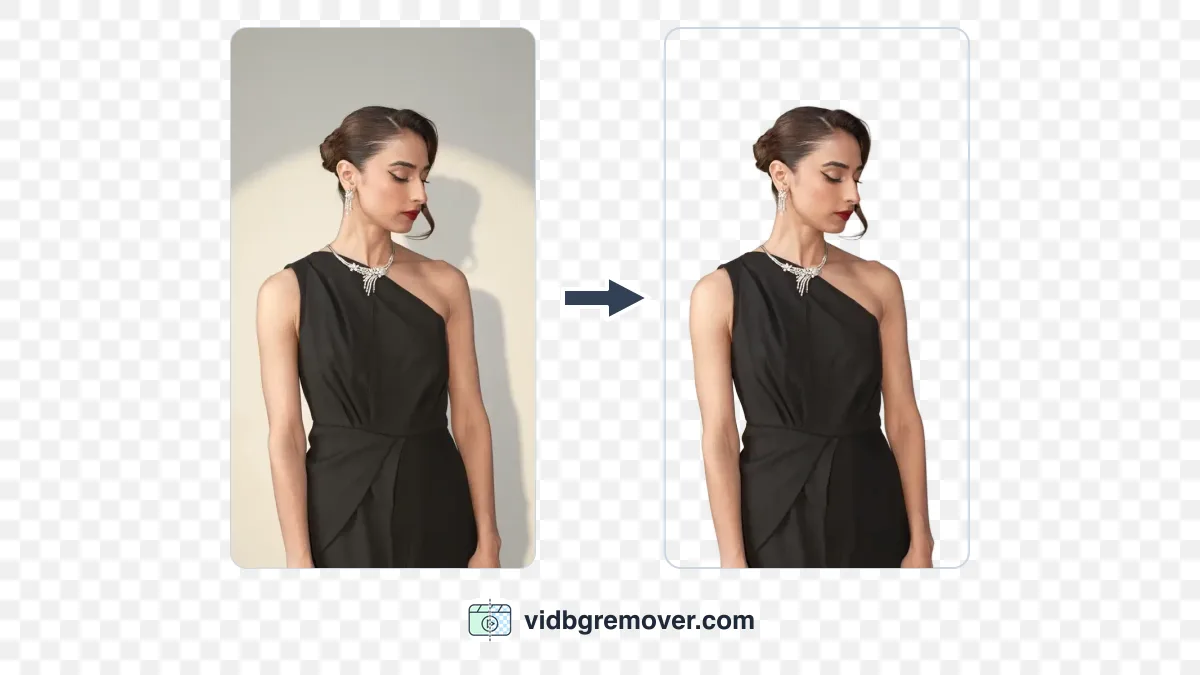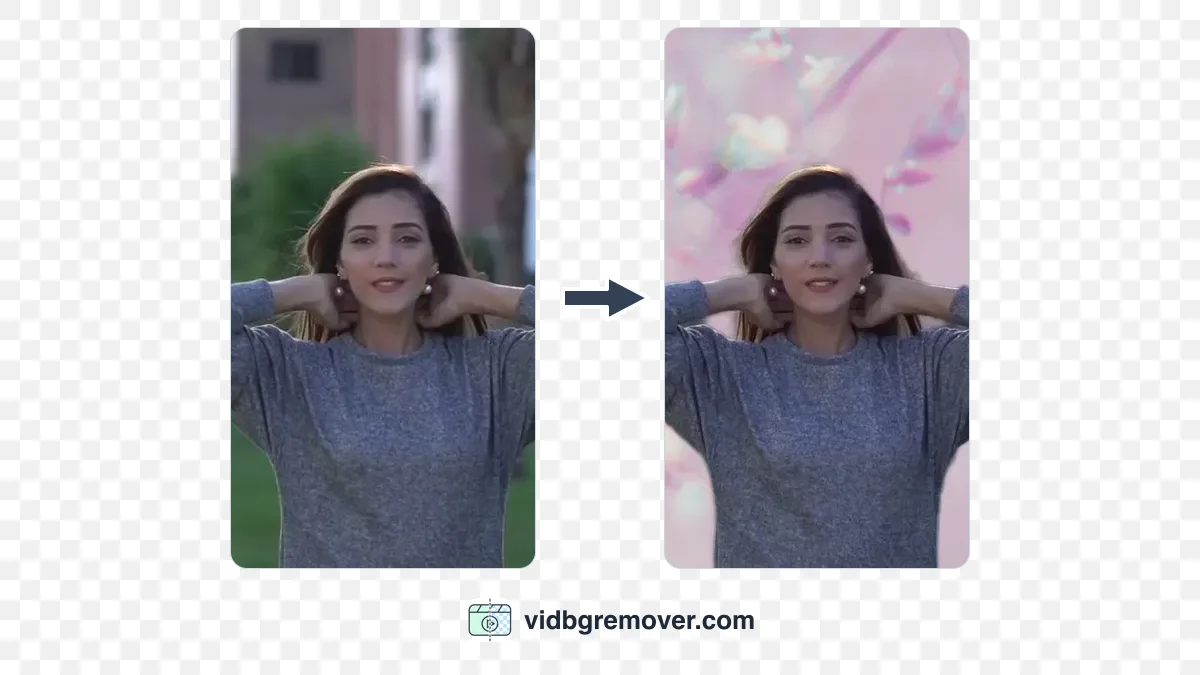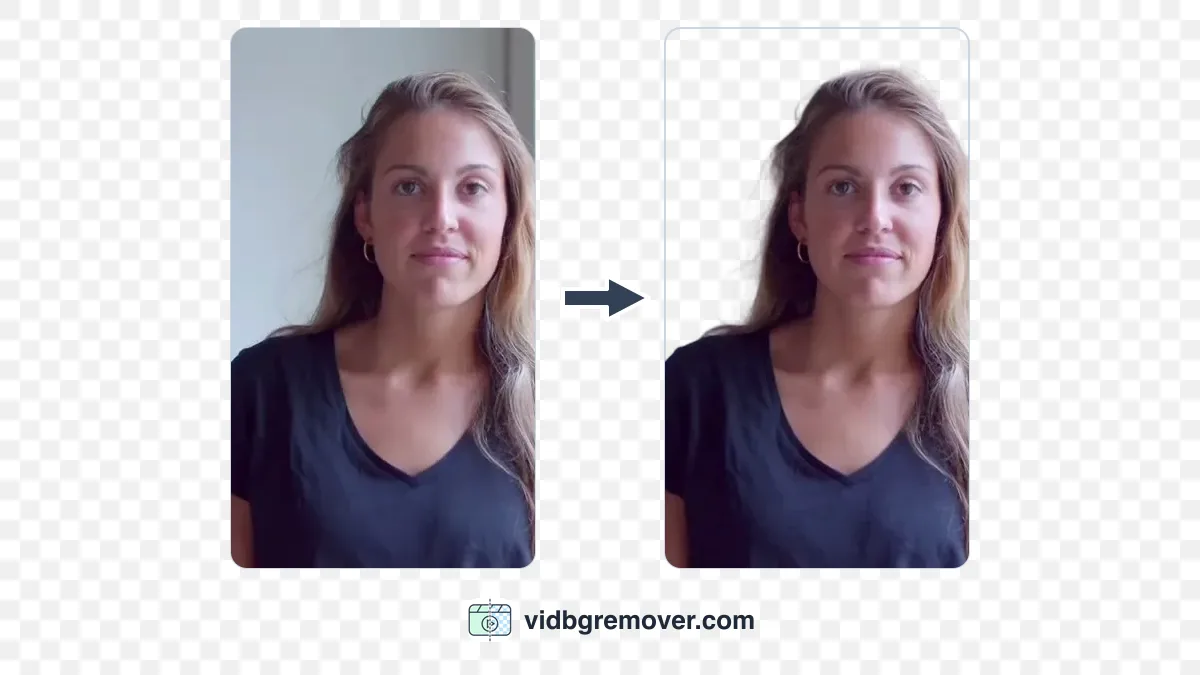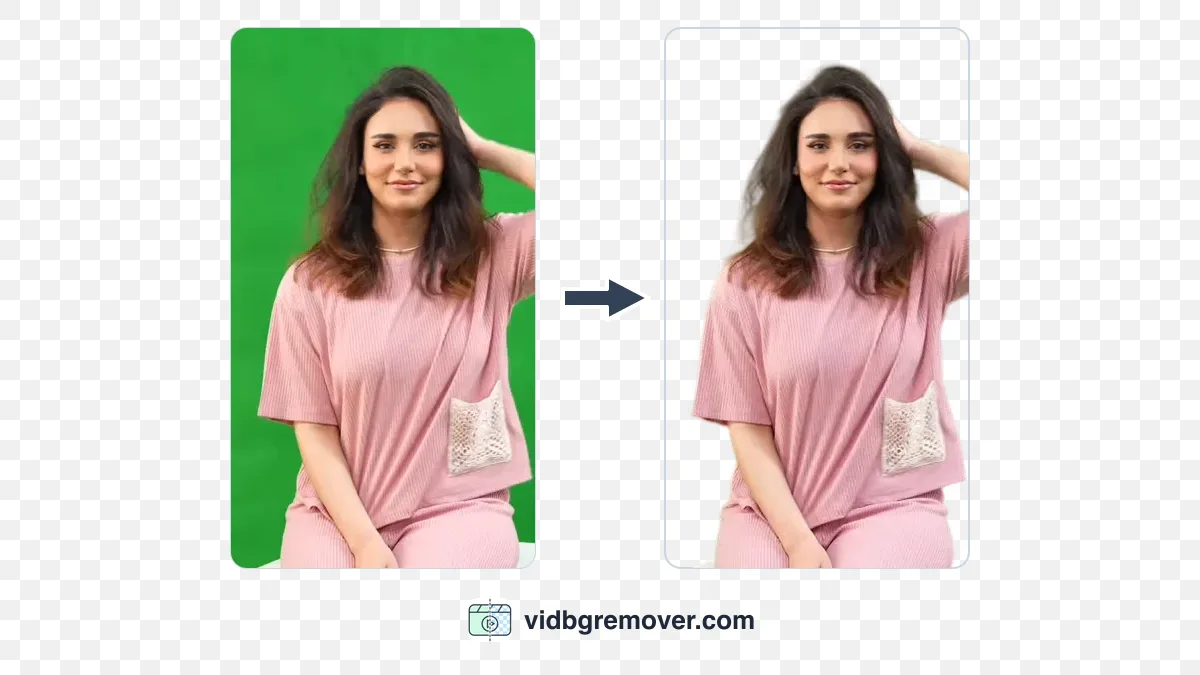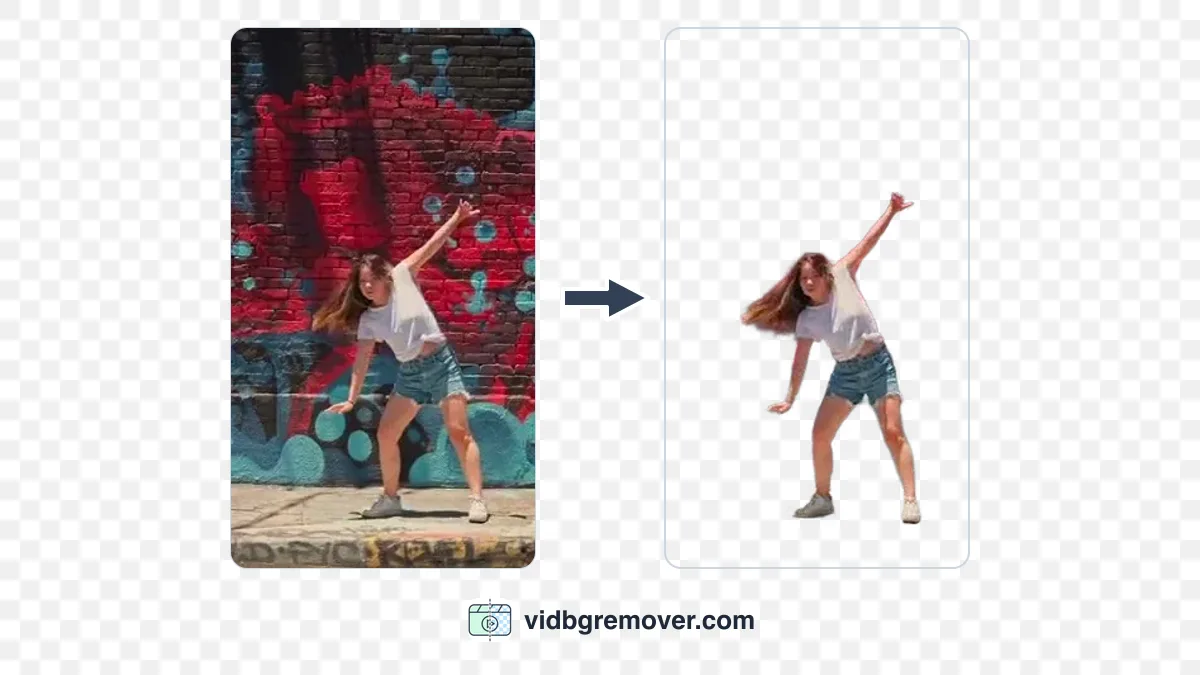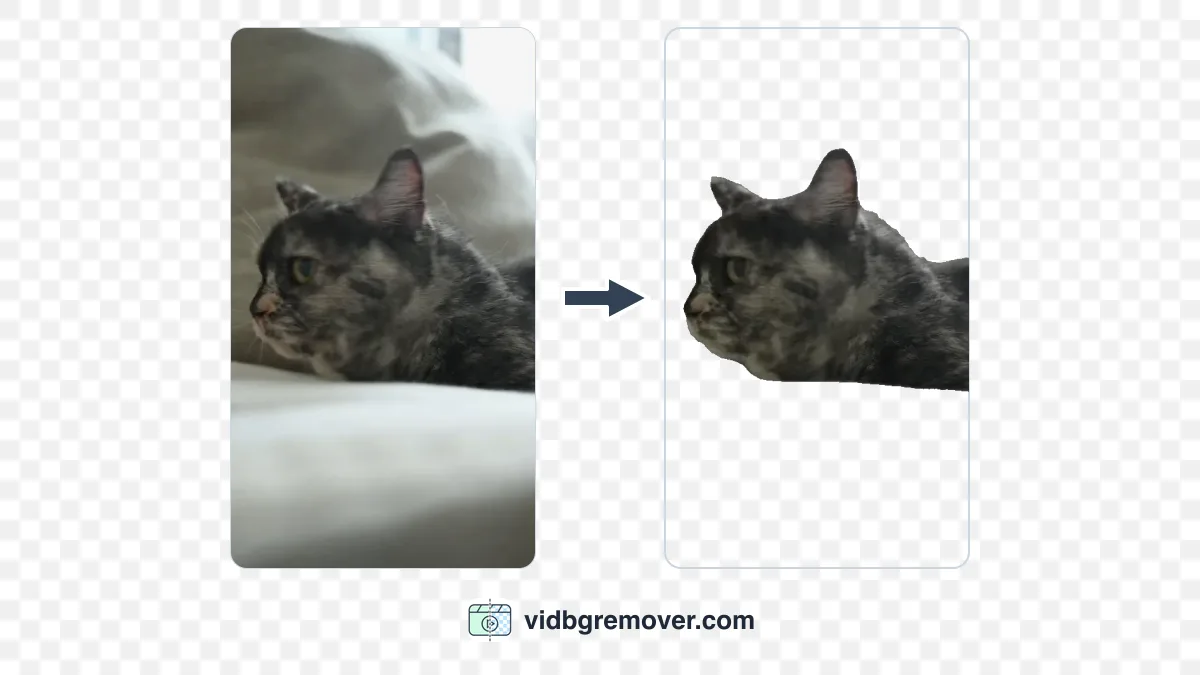
A black background does not necessarily mean background removal failed. The file may still be transparent, but the player may display the transparent areas against black. The export may also have lost the transparency, leaving a black background in the file itself.
Start by checking the player, the exported file, and the app you uploaded it to. The fix depends on where the problem occurred. The quick test below helps you check whether the downloaded file still contains transparency.
What a Transparent Video Actually Stores
Every pixel in a normal video carries red, green, and blue values. A transparent video carries a fourth value, alpha, which says how much of that pixel is visible. Where alpha is zero, the pixel disappears and whatever sits behind the video shows through.
Editors usually draw a checkerboard in those empty areas. That pattern is a preview convention, not part of the file. If a finished export carries the checkerboard into every app, the pattern was baked into the image and the file is not transparent.
For the result to appear transparent, background removal must isolate the subject, the export must preserve the alpha channel, and the app must display it correctly. If any of these steps fails, you may see a solid background instead.
Suspect 1: The Player Cannot Read Alpha
Some players display the color information without using the alpha channel. Where the file marks a pixel as transparent, they paint it black, because black is the closest thing to "no data" they can draw. The video then looks black even though the file contains transparency.
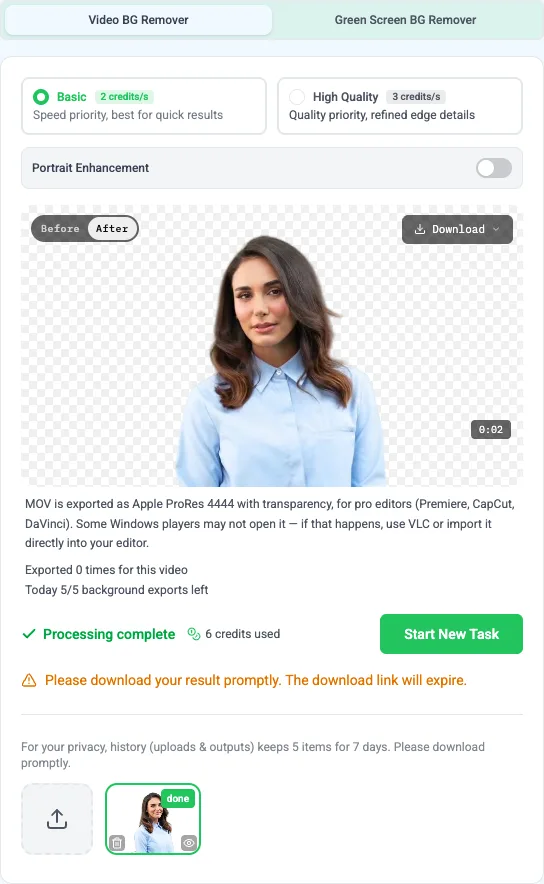
ProRes 4444 is the usual example. The file may be fine even if the player cannot display its transparency. A basic desktop player may refuse to show ProRes 4444 at all, and VLC can open the file while still painting the transparent area black. The place to check transparency is an editor that reads the format: CapCut, Premiere Pro, or DaVinci Resolve. The same clip can look perfect in your editor and black in a viewer that never supported the format.
If the file looks right somewhere and black somewhere else, stop troubleshooting the removal. You already have a working transparent file, and you have a player problem.
Suspect 2: The Export Flattened the Transparency
MP4 cannot store an alpha channel. That is a limit of the container, not a setting you missed. If the file you downloaded is an MP4, the transparency was flattened during export, however clean the cutout looked in the workspace.
What disappears is the fourth value; the color values stay. The area that used to be transparent takes on the color the tool put underneath when it generated the file, and background-removal tools usually use black. That is why the result so often comes out black and not some other color. This is a different failure from the player case above: there the file still has transparency, here it does not.
You can also lose transparency by:
- choosing a regular MP4 download when a transparent one was available;
- screen-recording the preview instead of downloading the file;
- converting a transparent WebM or MOV to another format to make it "compatible".

The transparent export guide covers which format to pick for which app. For this article, one rule is enough: in the download menu, choose Transparent WebM. If you need a MOV, run Export MOV first, then download Transparent MOV. Do not download the plain MP4 and expect alpha.
Suspect 3: The Destination Converted the File
Chat apps, social platforms, and site builders re-encode most uploads. They pick their own codec settings, and alpha is often the first thing to go. A transparent WebM can come back as an MP4 with a black or white box behind the subject.
The fix is not to fight the platform's encoder. If the final stop is a place that only takes MP4, composite the background you want before exporting: use the video background changer to put the subject over a color, an image, or another clip, then export a normal MP4. The background is now a deliberate choice instead of a rendering accident.
Test the File in One Minute
Do this before you change any settings.
- Download the original file from the tool, not a screenshot or a screen recording.
- Open it in an editor that supports the format you exported.
- Put a bright solid color on the layer underneath.
- Play the clip and look at the hair, shoulders, and the space between an arm and the body.
If the color shows through those gaps, the alpha channel is intact and the black preview was the player's fault. If black stays, the file has no usable alpha or the background was never removed.
The preview inside the tool only shows how the cutout looks there. It does not tell you whether the downloaded file kept the transparency.
Fix by Format
| Format | Transparency | Best for | Watch out for |
|---|---|---|---|
| Transparent WebM | Yes | Web pages, apps whose browser engine reads alpha video | The receiving browser or app still has to support it |
| Transparent MOV (ProRes 4444) | Yes | Editing and compositing in software that reads ProRes 4444 | Large files; basic players may show black instead |
| GIF | One-bit only | Short loops, chat stickers, emoji | Hard edges; fine hair and soft shadows look rough |
| MP4 | No | A clip that already has its background composited | Flattens transparency on export, always |
For a web page, start with WebM and check it in the browser you care about. For an editing timeline, use MOV if your editor reads ProRes 4444. For a short sticker or reaction loop, the GIF background remover is the shorter path, with the caveat that GIF transparency is all-or-nothing per pixel.
How to Tell a Transparency Problem from Bad Removal
These symptoms help distinguish a transparency problem from an incomplete or uneven cutout.
- A black rectangle behind a clean subject: the subject may be correctly isolated, but the transparency is missing or is not being displayed. Work through the three suspects above.
- The original room is still visible: removal did not isolate the subject. Start over with the video background remover and check the result before exporting.
- Halo, ghosting, or flickering edges: the mask is noisy rather than missing. The flicker and missing hair guide covers that case.
Getting these three confused is the fastest way to waste an afternoon re-exporting a file that was already correct.
What If You Need an MP4 Anyway
Most places you actually publish want MP4: video platforms, ad managers, course players, chat apps. What those places take is a file that plays as-is, background included.
Pick the background first, composite it in the video background changer, and export a regular MP4. You could use white for a product page, a brand color for social media, or a photo of your chosen setting. The exported video then includes the background you selected.
Transparent Video Black Background FAQ
Is a black background normal for transparent video?
In some players, yes. Black is how they draw pixels marked as transparent when they cannot read the alpha channel. A file that shows black in one app and shows the scene behind it in another is working as intended.
Why does my clip look transparent in the editor but black in a normal player?
Because the editor reads the alpha channel and the player does not. This is common with ProRes 4444 and with alpha WebM outside browsers. Test the same file in a second editor before you conclude the export failed.
Can an MP4 be transparent?
No. The MP4 container has no alpha channel. You can remove the background and export a transparent WebM or MOV, or keep the MP4 and add a background to it.
Does uploading to social media or a chat app keep the transparency?
Usually not. Those services re-encode uploads, and most of them do not preserve alpha. If the final destination only accepts MP4, composite the background yourself and upload an MP4 you control.
My file has a black box only in some apps. Is the file broken?
Not necessarily. A file that shows correctly in at least one app that supports the format carried its transparency through export. The app showing black may not be displaying the alpha channel correctly.
Should I use a GIF instead?
Only for short, small assets like stickers and emoji. GIF transparency is one bit per pixel, so edges are hard and hair looks cut out with scissors. For anything you will composite over footage, export WebM or MOV.