In the free version of CapCut, the Remove BG tab mixes paid and free tools. Auto removal carries the Pro badge, so the one-click AI cutout is not available until you pay. What stays unlocked is Chroma key, plus the two manual brushes in Custom removal.
The export side is friendlier: the codec list includes HEVC (Alpha) and Apple ProRes 4444 even on a free account. The free workflow is real, but it starts with a color key or a painted mask.
TL;DR
- Free CapCut unlocks Chroma key under Video → Remove BG, and the two manual brushes in Custom removal. Auto removal and the two automatic brushes carry the Pro diamond: the preview runs, but the export is blocked.
- Chroma key needs a green, blue, or otherwise even backdrop. It has no notion of a subject, so a multi-colour background such as a room cannot be removed cleanly.
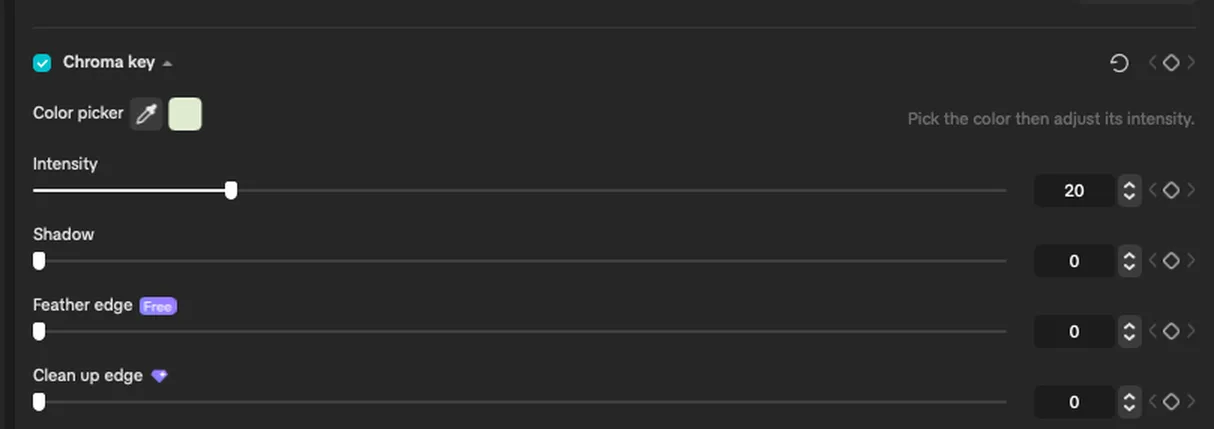
- Intensity, Shadow, and Feather edge are free; Clean up edge is Pro.
- Export is not the paid part: in the Codec list, pick HEVC (Alpha) or Apple ProRes 4444 to keep transparency. Remove watermark is a Pro switch, so check your own export for a watermark.
What free CapCut background removal actually unlocks
Open a project, select a clip, and go to Video → Remove BG. The panel shows four tabs: Basic, Remove BG, Mask, and Retouch. Only inside Remove BG can you see what the free plan gives you.
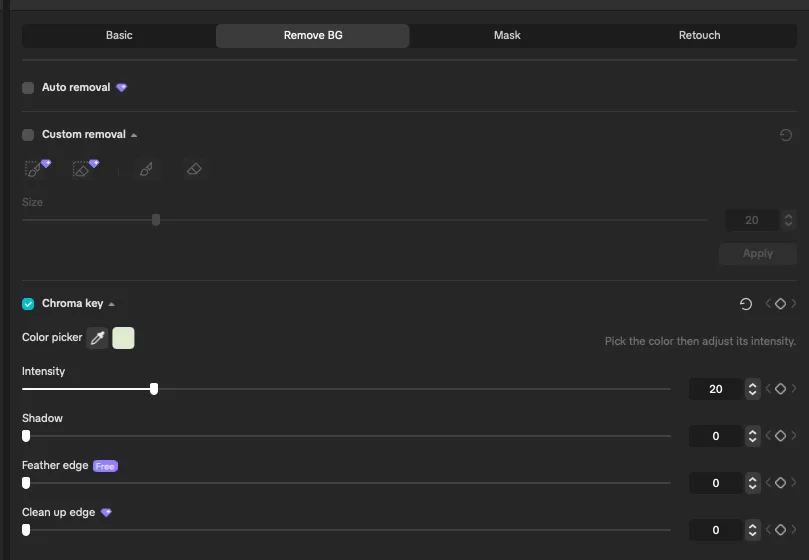
The screenshots come from CapCut desktop 9.8.0-beta3 on macOS with a free account, captured on 2026-11-04. Beta builds change quickly, so confirm each panel on your own machine.
A small purple diamond marks a Pro feature. In 9.8.0-beta3, Auto removal has it, and so do the two automatic brushes inside Custom removal. The other two brushes are manual: you paint over the subject, then apply the mask. Chroma key has no diamond either.
The panel also shows which refinements cost money: Feather edge is tagged Free, Clean up edge carries the diamond.
Auto removal is the paid part
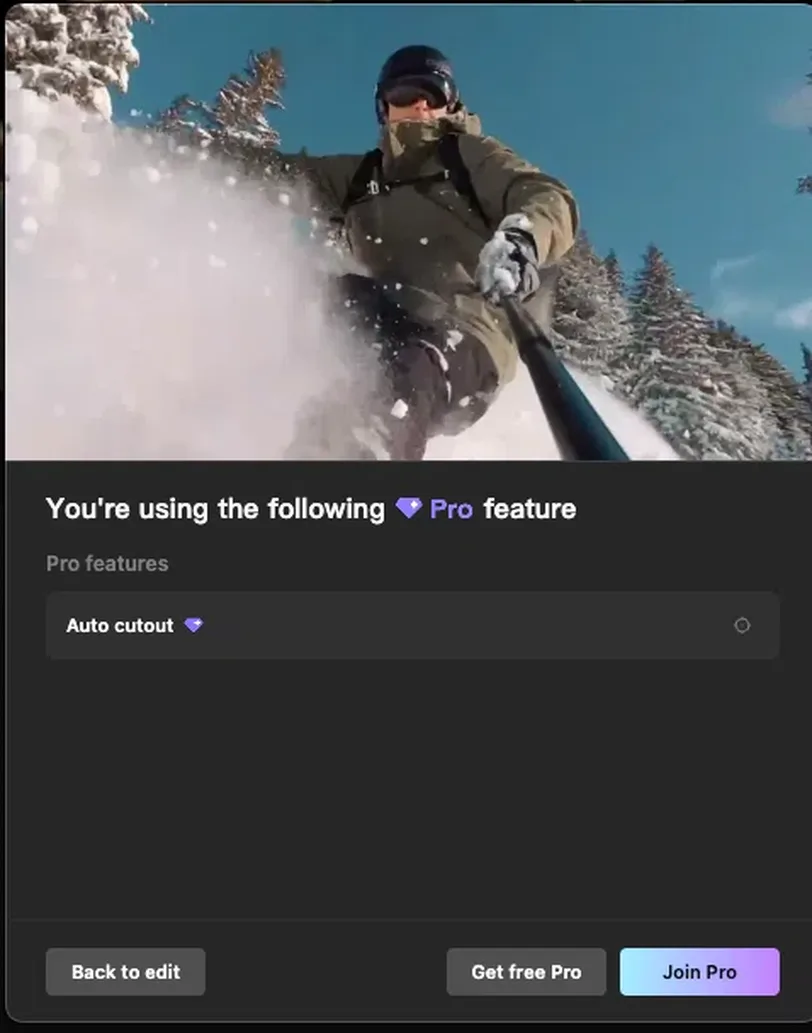
Auto removal is the feature most CapCut tutorials demonstrate: click once, and the viewer shows a checkerboard behind your subject. On a free account you can switch it on and watch that preview. Export is where it ends: a dialog titled You're using the following Pro feature lists Auto cutout (CapCut uses both names) and offers Back to edit, Get free Pro, and Join Pro. The control works, the preview looks convincing, and the finished file is what you do not get. That is a plan limit, not a setting you missed.
How to use Chroma key in CapCut free
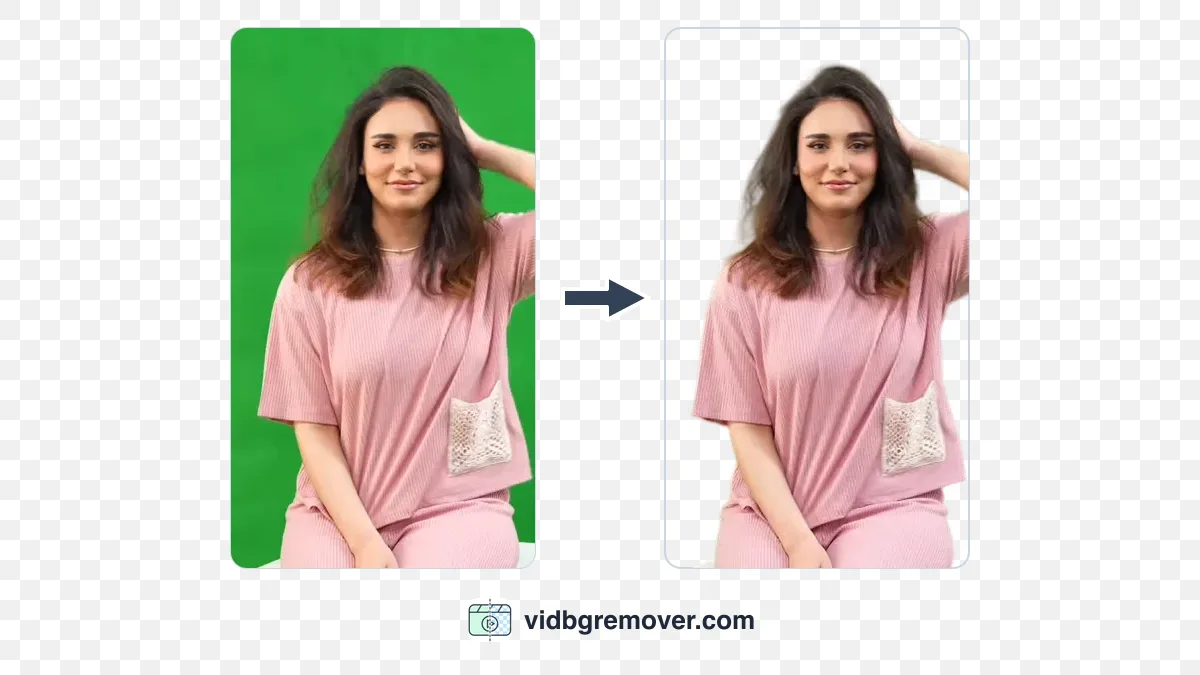
Chroma key removes one sampled color and everything close to it. It works best when the backdrop is a single, evenly lit color, ideally green or blue, and the subject does not wear that color.
- Drag the clip onto the timeline and select it.
- Open Video, then the Remove BG tab.
- Switch on Chroma key.
- Use Color picker to sample the backdrop. The swatch shows the color you picked, and the panel reminds you to pick first, then adjust.
- Raise Intensity until the backdrop disappears. Stop before the edges start eating into hair and shoulders.
- Balance Shadow to keep darker areas from turning transparent, and Feather edge to soften the cut. Leave Clean up edge alone unless your account has Pro.
- Put a bright color or a photo under the clip and play it back to judge the edge in motion, not in a single frame.
Where Chroma key stops working
Chroma key is not a subject detector. It removes a color, so anything you keep that matches the key will vanish with the backdrop.
- No flat backdrop. A room, a street, or a window looks like a hundred colors to the key. Free CapCut has no automatic answer: you paint the subject by hand, or pay for Auto removal.
- Green spill. Colored bounce from the backdrop collects on skin, hair, and light clothing. A small correction on the subject helps more than pushing Intensity higher.
- Hair and motion blur. Strands and fast movement blend the subject into the key color, and the edge turns crunchy or disappears.
- Shadows. A shadow on the backdrop is a darker version of the key color, so the key either eats it or leaves a dark smear.
If the footage has no clean color behind the subject, stop tuning Chroma key. You can paint the subject with the free manual brushes, buy the upgrade for Auto removal, or take the clip to a tool built for ordinary footage.
Export a transparent file from CapCut free
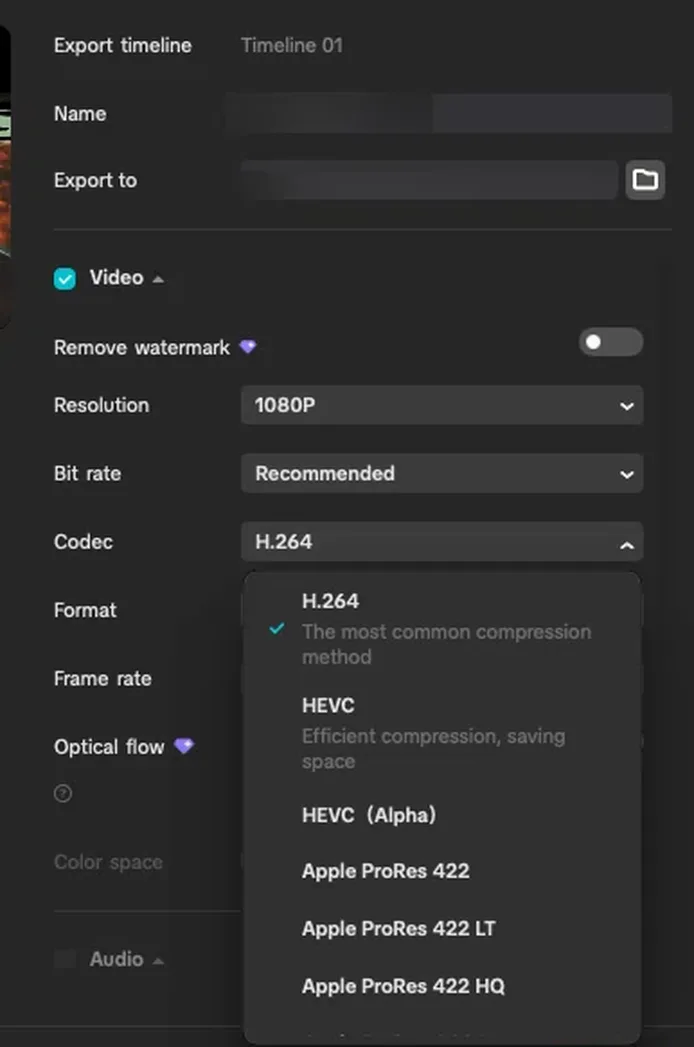
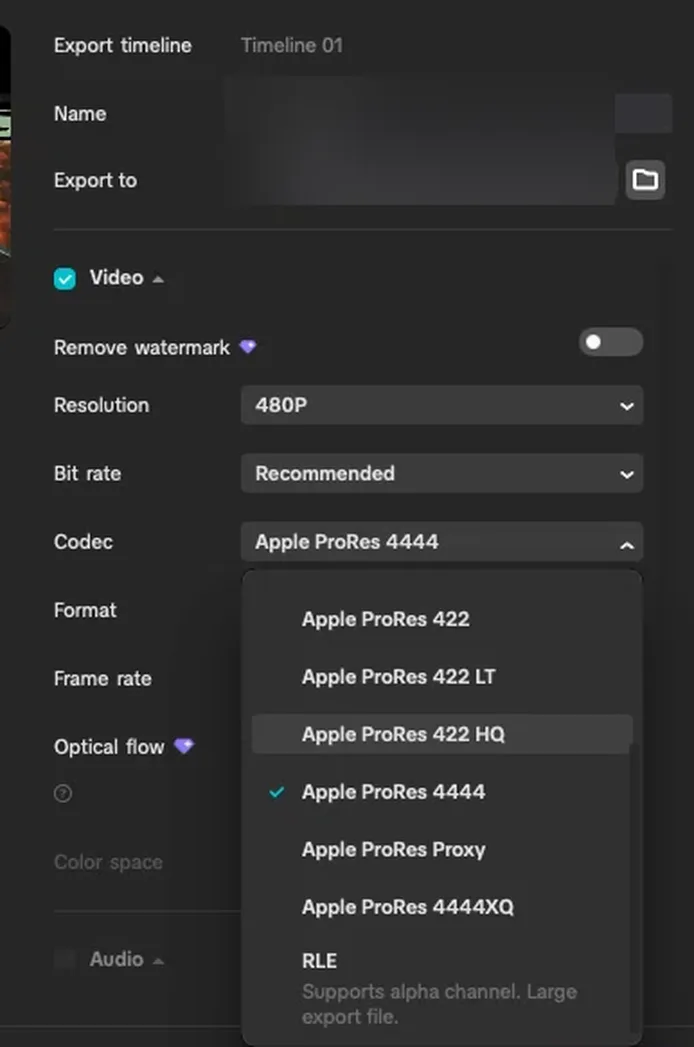
Export is not where the free plan stops you. Open Export, expand Video, and look at Codec. The list includes:
- H.264 — the everyday choice, no alpha channel.
- HEVC — smaller files, still no alpha.
- HEVC (Alpha) — the codec that carries transparency.
- Apple ProRes 422 / 422 LT / 422 HQ / Proxy — large intermediates for editing, without an alpha guarantee.
- Apple ProRes 4444 / 4444XQ — large files that are built to carry transparency.
- RLE — CapCut labels it "Supports alpha channel. Large export file."
Which codec to pick
Pick HEVC (Alpha) when you want a small transparent file and your next app reads HEVC with alpha, which is typical of the Apple ecosystem, Final Cut Pro among them. Windows players and some NLEs are less consistent with it, so open the file in the editor you actually use before you plan around it.
Apple ProRes 4444 is the heavier alternative and the safer bet for professional editing software; the 422 variants are editing intermediates and do not guarantee alpha. Whichever you choose, run one short test: export a few seconds, re-import the file, and place it over a bright solid color. Color showing through means the alpha survived. If the rectangle stays black, check whether the export kept alpha and whether the receiving app reads that codec. On a free account in 9.8.0-beta3, an HEVC (Alpha) export passed that test.
Remove watermark and Optical flow both carry the Pro diamond; if a watermark shows up on your export, that switch clears it.
Removing a background without a green screen
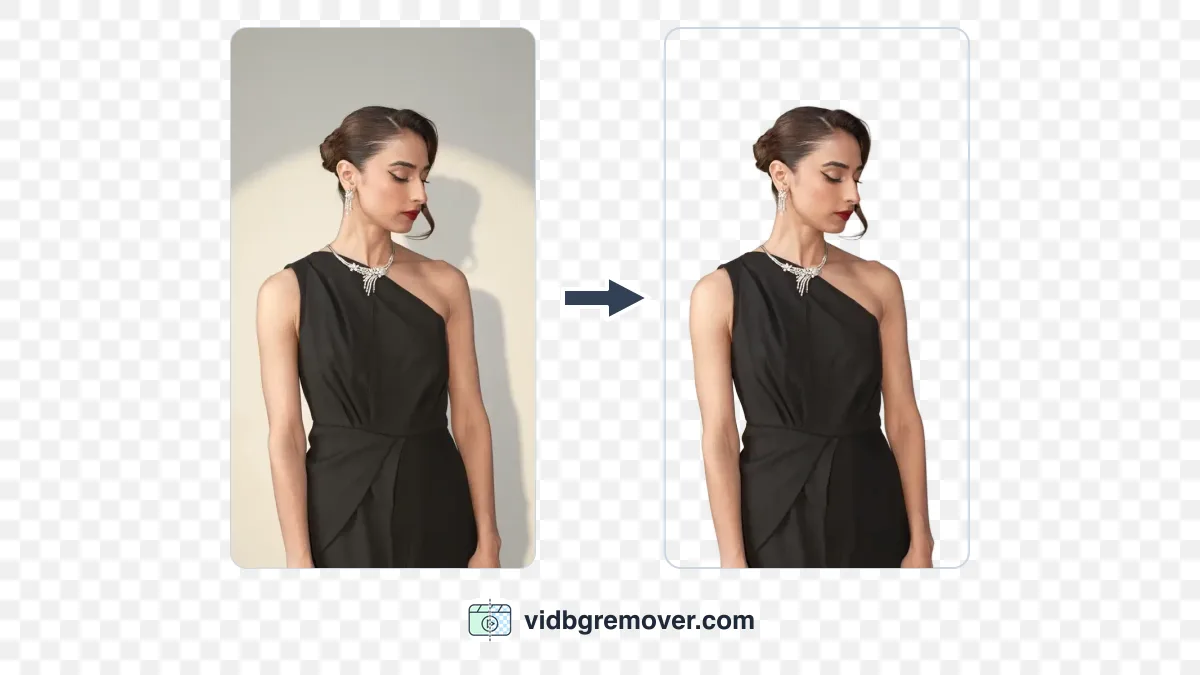
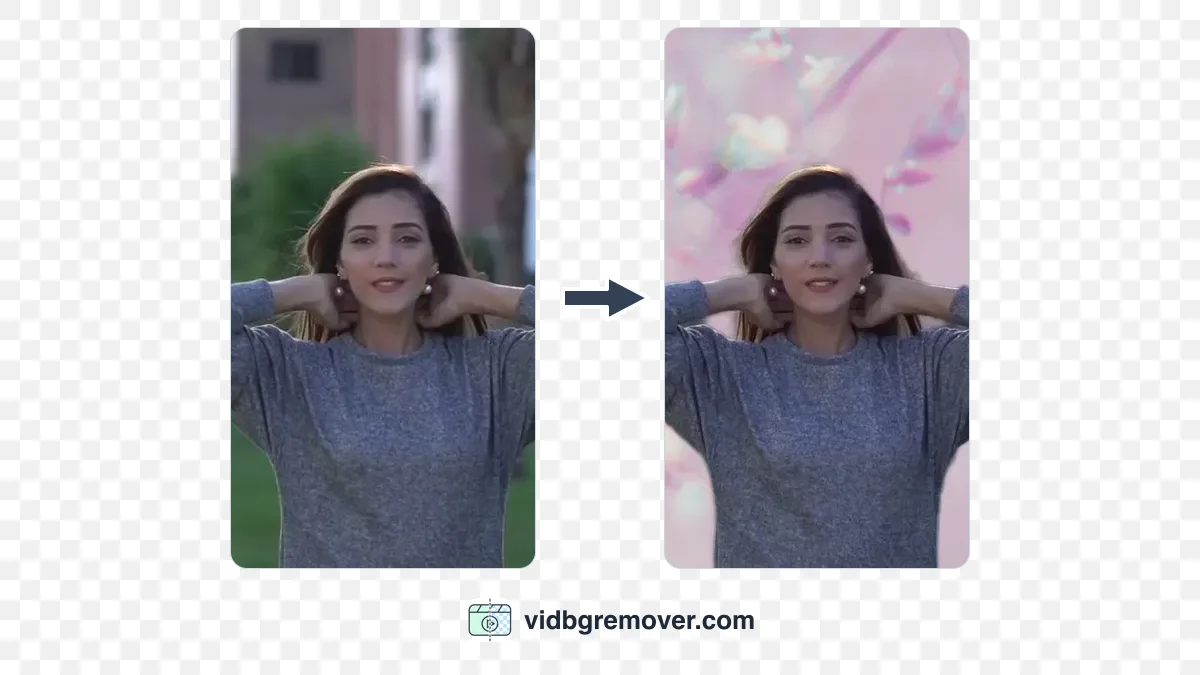
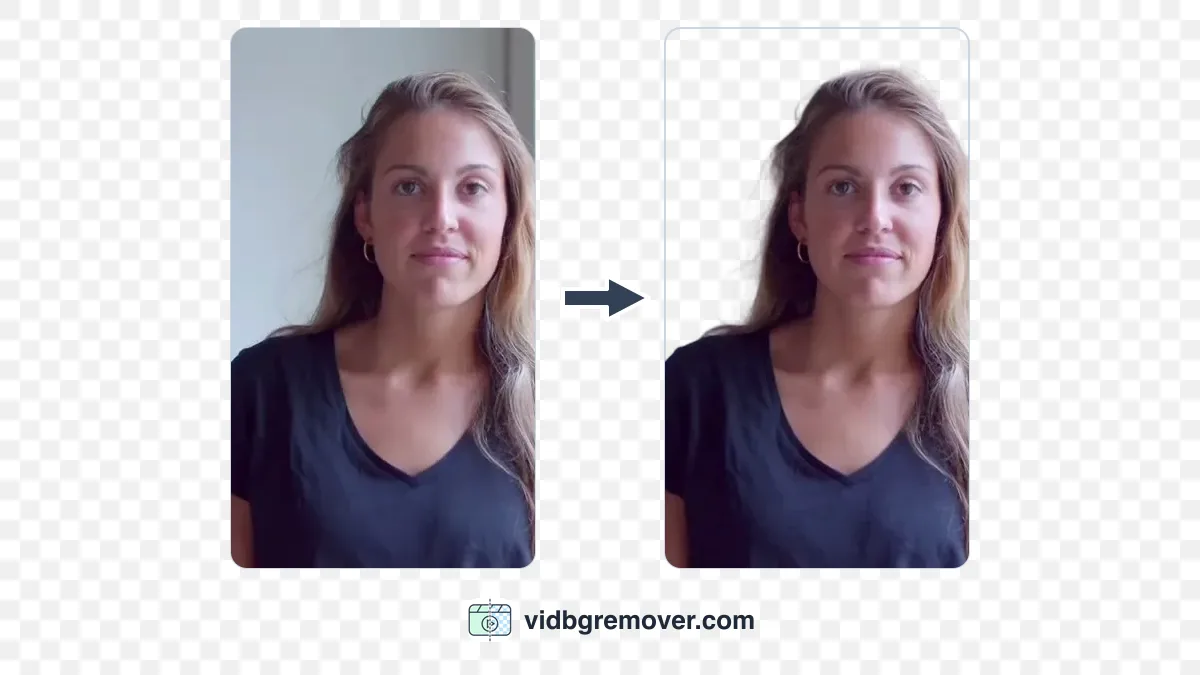
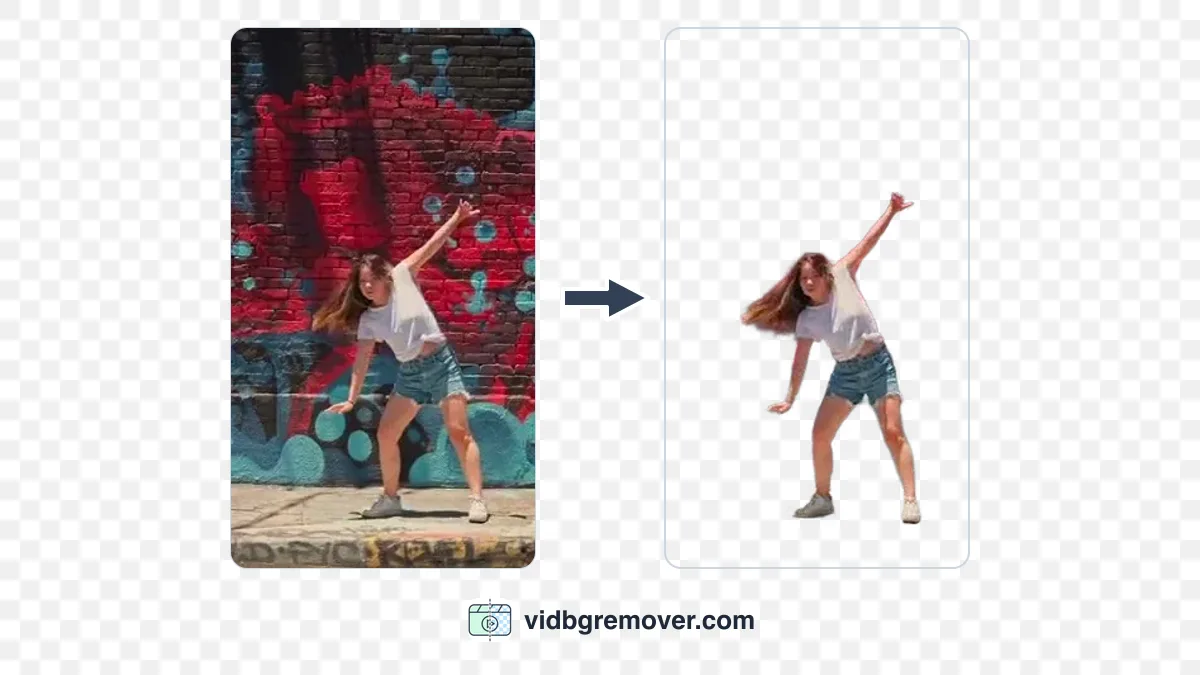
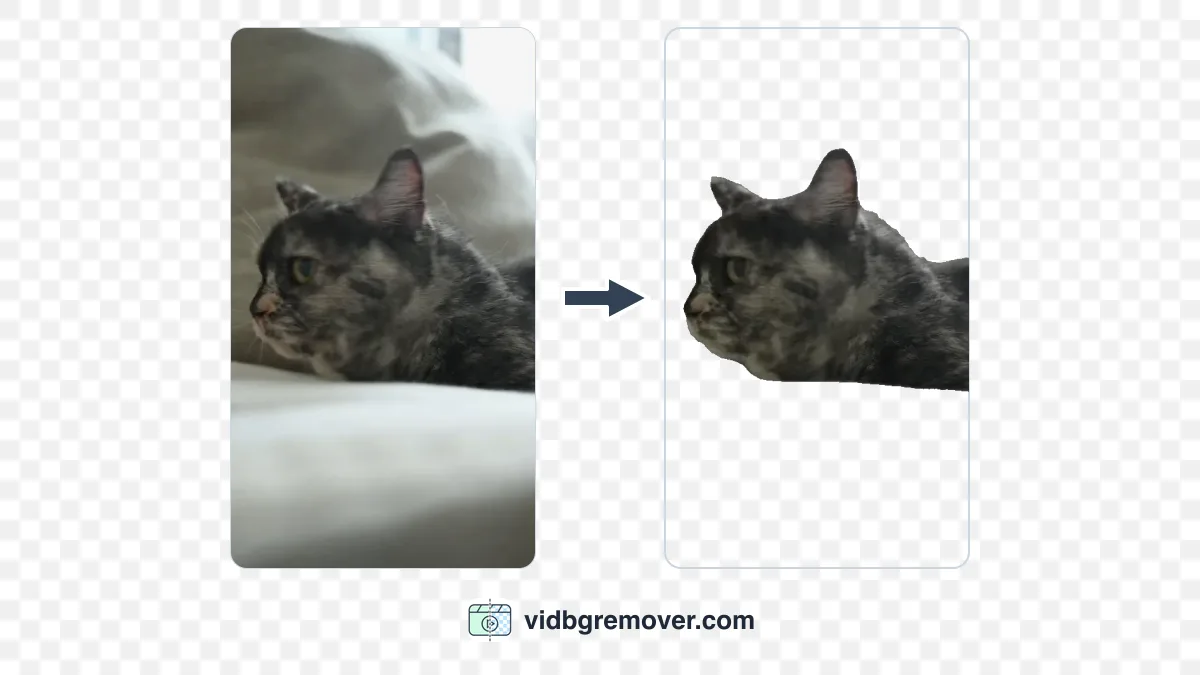
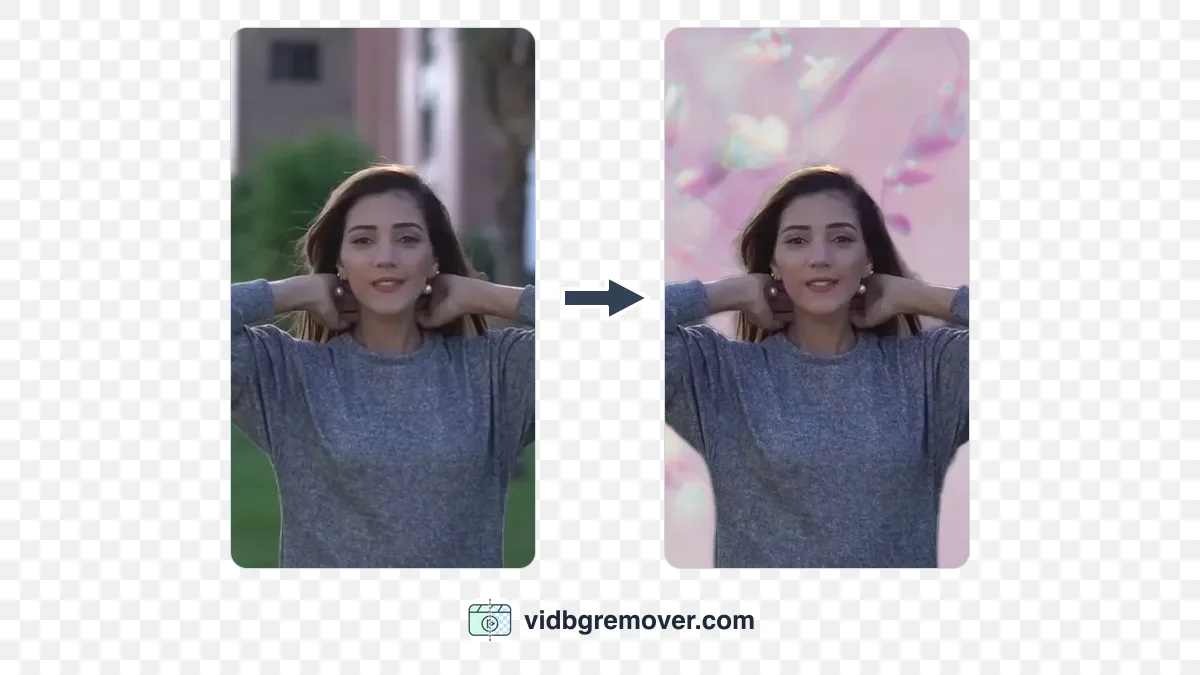
If the original footage has an ordinary background, free CapCut cannot cut it out automatically. VidBG Remover does exactly that: you upload the clip, the AI separates the subject from whatever is behind it, and the export keeps a real alpha channel.
- Open VidBG Remover and upload an MP4, MOV, or WebM. Signed-in clips can be up to 60 seconds and 200MB.
- Run the removal. Basic costs 2 credits per second; High Quality costs 3 credits per second. No green screen and no green fill.
- Export transparent WebM (VP9), MOV (ProRes 4444), or GIF.
- Test the file over a bright color before you build anything on it.
Credits are not a subscription: packs start at $9.9 for 240 credits, and signing in adds free credits plus a daily check-in, with watermark-free HD exports. A 15-second clip costs 30 credits at Basic and 45 at High Quality. The tool cannot rescue a mushy source; missing hair stays missing. For the format comparison, see the transparent video export guide.
Bringing the transparent file back into CapCut
Import the WebM or MOV and drag it above your background. Do not add a fill while you are testing: put a bright color underneath instead. Color coming through at the edges means CapCut is reading the alpha; a black rectangle means it is not.
Try MOV (ProRes 4444) first on desktop. The file is large, but the format is built to carry alpha. CapCut's support still depends on the build, so run the same color test. When the test passes, swap the bright color for the photo, slide, or color you actually want behind the subject.
If CapCut still shows black
A green-screen MP4 is the portable fallback. Composite the cutout over pure green in an editor that reads alpha, export a high-bitrate MP4, then key it in CapCut with Chroma key. This adds a compression pass and can soften fine hair, but it survives editors and players that ignore alpha. If you are shooting new footage, start against green and key it with the green screen tool, then check the edges at 100% for spill.
Use GIF only for small stickers
Transparent GIF is a last resort for stickers, lower thirds, and small graphics. GIF transparency is on or off, so edges look jagged, and the format is limited to 256 colors with no audio. It is a poor fit for a full-frame person.
FAQ: CapCut background removal and transparent files
Is Remove BG free in CapCut?
Partly. Chroma key and the two manual brushes in Custom removal are free; Auto removal and the two automatic brushes need Pro, and export is blocked with the Pro prompt.
Can free CapCut export a transparent video?
Yes. Export is not locked: choose HEVC (Alpha) or Apple ProRes 4444 in the Codec list. Remove watermark and Optical flow are the paid switches there, and a watermark on your own export is worth checking.
Can CapCut free remove a background without a green screen?
Yes, but by hand. Chroma key fails on an ordinary room, yet the manual brushes in Custom removal let you paint the subject and apply a mask; that is slow beyond a short clip. Automatic detection is the Pro part, and VidBG Remover does that without a green screen.
Why is my export black behind the subject?
H.264 and plain HEVC cannot store alpha, so the cutout is flattened against a fill color, usually black. Re-import the file over a bright color to see whether the alpha survived; if it did not, either the codec was wrong or the app you imported it into does not read alpha.
Does VidBG Remover need a green screen?
No. It creates an alpha channel from ordinary footage, not from a color key. Upload an MP4, MOV, or WebM of up to 60 seconds and 200MB when signed in, then export transparent WebM, MOV, or GIF.
Remove a video background in CapCut free, then choose the export that fits
On a free account, CapCut gives you a color key, the manual brushes, and the alpha codecs, and charges for the AI removal. Green-screen footage can go all the way through the free pipeline; an ordinary room cannot be removed automatically.
When the footage has no clean color behind the subject, start with VidBG Remover, then bring the file back into CapCut and drop your own background behind it. After importing the file, put a strongly contrasting solid color underneath and check the transparent areas and edges.