
The Browser-Based Final Cut Pro Alternative for Video Background Removal.


VidBG Remover: A Final Cut Pro Background Remover Alternative
Final Cut Pro already offers Magnetic Mask and Green Screen Keyer — built-in Final Cut Pro background removal inside a full editor. The difference is convenience for a standalone clip: upload once to the browser when you want automatic processing and a ready-to-import transparent file without setting up the removal pass yourself.
| Dimension | VidBG Remover | Final Cut Pro |
|---|---|---|
| Background removal without a green screen | Yes — AI removes the background from ordinary footage in the browser | Yes — Magnetic Mask uses machine learning to isolate people, objects, and shapes, then analyzes the clip |
| Green/blue screen keying | Yes — Green Screen mode with spill suppression | Yes — Green Screen Keyer with color sampling, matte controls, spill suppression, and keyframes |
| Subject isolation workflow | Upload once and this Final Cut Pro background remover alternative creates the cutout automatically before you review the result | Add the clip to a timeline, apply Magnetic Mask, analyze forward or backward, then refine selections as needed |
| Hair & fine edge handling | High Quality mode is available for footage with hair and other fine edges | Magnetic Mask supports detailed viewer refinements; Green Screen Keyer includes edge and matte controls |
| Typical time per 30s clip | Automatic — a 30s clip usually finishes in 60–90 seconds after upload | Varies with mask analysis, edge corrections, and the finishing work in the timeline; difficult clips can take longer to clean up |
| Transparent video export | One-click MOV (ProRes 4444 alpha) for NLE timelines; WebM (VP9 alpha) for web | Manual export setup for an alpha-capable format such as ProRes 4444 |
| Install & platform | Browser-based — upload, process, download | Mac or iPad app; the current Mac requirements include macOS 15.6 or later |
| Full editing capabilities | Focused on background removal and transparent video export | Full NLE for timeline editing, audio, color, effects, compositing, and delivery |
| True cost per 30s clip | ≈ $2.50 in Basic mode (60 credits at the Starter rate) | Not priced per clip — available as a Mac purchase or through Apple Creator Studio |
| Pricing | Pay-as-you-go credits from $9.9 — no subscription | $299.99 one-time on Mac, or included with Apple Creator Studio subscription |
When a Final Cut Pro Alternative Saves You the Mask Setup
Four situations where a browser-based alternative to Final Cut Pro handles the cutout, so the timeline keeps doing the editing.


Footage That Wasn't Shot on a Green Screen
Final Cut Pro can isolate ordinary footage with Magnetic Mask, but a standalone cutout still means timeline setup, analysis, and any necessary selection refinements.
A client sends a talking-head clip shot in a living room? Upload it here instead of opening a full Final Cut Pro background removal workflow just for the cutout. The AI handles the first pass automatically, then you can download a transparent MOV and bring the subject back into Final Cut Pro for the edit.
Remove a Video Background for Free

One-Off Clips That Do Not Need a Full Edit
A short cutout may not justify a full Final Cut Pro background removal setup: opening a library, arranging a timeline, analyzing a mask, checking edges, and configuring a transparent export.
For social clips, reaction cutouts, and quick overlays, this Final Cut Pro alternative needs one upload in the browser — the automatic pass does the first cutout, typically 2–3x the video duration, so a 30-second clip is usually ready in 60–90 seconds. Keep Final Cut Pro for projects that need its full editing toolkit.
Remove a Video Background for Free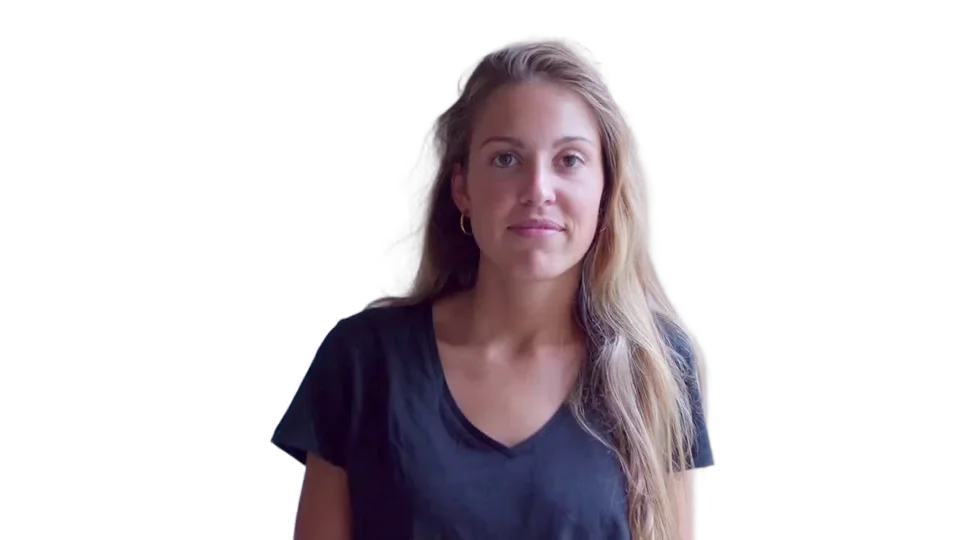

Hair, Fingers, and Fine Edges
Final Cut Pro gives you Magnetic Mask control points and brush refinements; automatic recognition can still need cleanup when the footage is difficult.
This Final Cut Pro background remover alternative includes a High Quality mode designed for footage where hair, fingers, and shoulders matter. It handles the first pass automatically, so you review the actual output before exporting the transparent clip back for color, timing, audio, and compositing work. Neither workflow removes the need to inspect difficult footage.
Remove a Video Background for Free

Transparent Overlays That Return to Final Cut Pro
You do not need to choose between a focused remover and a full editor — use each for the part of the workflow it is built to handle.
Let the browser handle the standalone removal pass, then export MOV (ProRes 4444) with a true alpha channel and place the transparent clip above your background in Final Cut Pro. Continue with positioning, grading, graphics, timing, and audio in the NLE. No plugin or format conversion is required for the MOV handoff — the alternative to Final Cut Pro handles the cutout, the editor handles the edit.
Remove a Video Background for FreeFinal Cut Pro Background Removal vs VidBG Remover: Where Each Fits
Final Cut Pro can handle both keying and machine-learning subject isolation inside a full editing workflow. VidBG Remover is a focused three-step alternative to Final Cut Pro when you want a transparent clip before returning to the timeline.
How Final Cut Pro Background Removal Works
Final Cut Pro offers two different paths: Green Screen Keyer for chroma-key footage, or Magnetic Mask for isolating people, objects, and shapes from ordinary footage.
- 1
Add the Clip to a Timeline
Import the foreground clip into a Final Cut Pro library and place it in the timeline before you start the isolation pass.
- 2
Choose Magnetic Mask or Green Screen Keyer
Use Magnetic Mask for a subject in ordinary footage, or Green Screen Keyer when the shot has a suitable dominant screen color.
- 3
Analyze and Refine the Selection
Analyze forward or backward, inspect the matte, and use control points or the brush when the selection needs correction.
- 4
Composite and Check Difficult Frames
Place a background below the foreground, review motion and fine edges, and make any needed mask, keyer, or color adjustments.
- 5
Configure a Transparent Export
If the transparent clip must leave Final Cut Pro, choose an alpha-capable export format such as ProRes 4444 and verify the result in the destination workflow.
The Final Cut Pro Alternative Workflow — 3 Steps
The convenient standalone path for Final Cut Pro background removal: upload once, let the AI process the clip, and return to the timeline with transparency intact.
- 1
Upload Your Video
MP4, MOV, or WebM up to 60 seconds and 200MB. Ordinary footage works — no green screen required.
- 2
AI Processes the Cutout
The automatic pass typically takes 2–3x the video duration — a 30-second clip is usually ready in 60–90 seconds. Review the cutout before exporting, especially for difficult motion or fine detail.
- 3
Download a Transparent MOV
Download a MOV with ProRes 4444 and alpha, then import it into Final Cut Pro for editing, color, audio, and compositing. WebM (VP9 alpha) is available for compatible web workflows.
Actual Output From a Final Cut Pro Background Remover Alternative
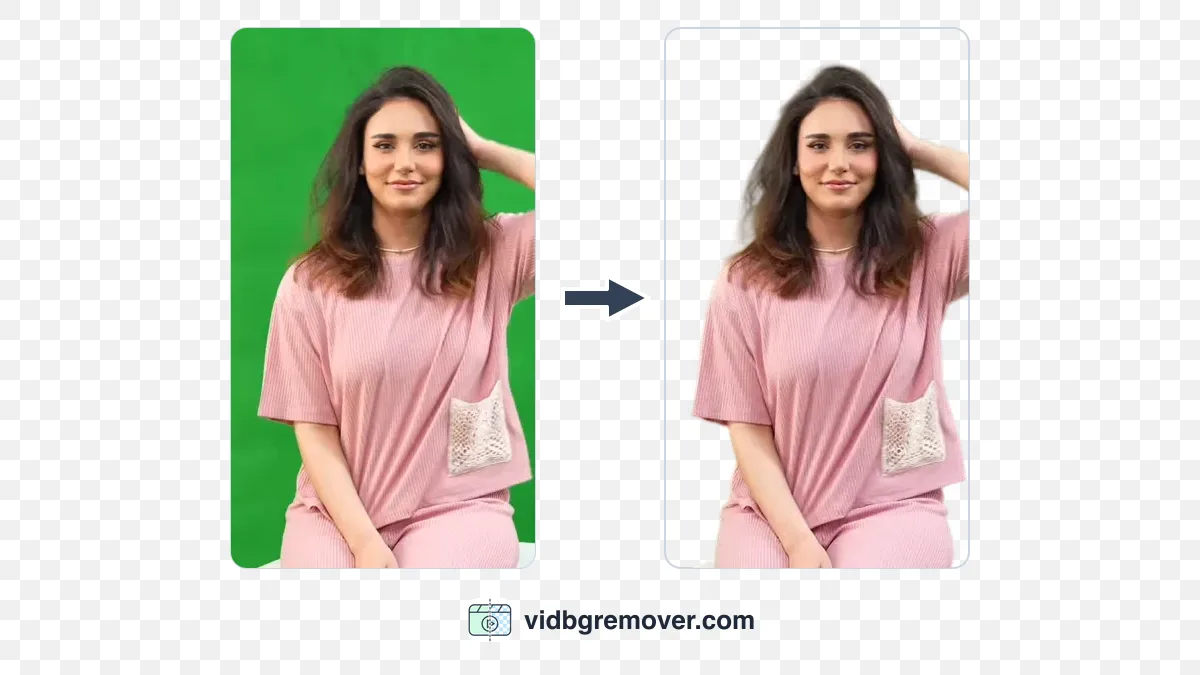
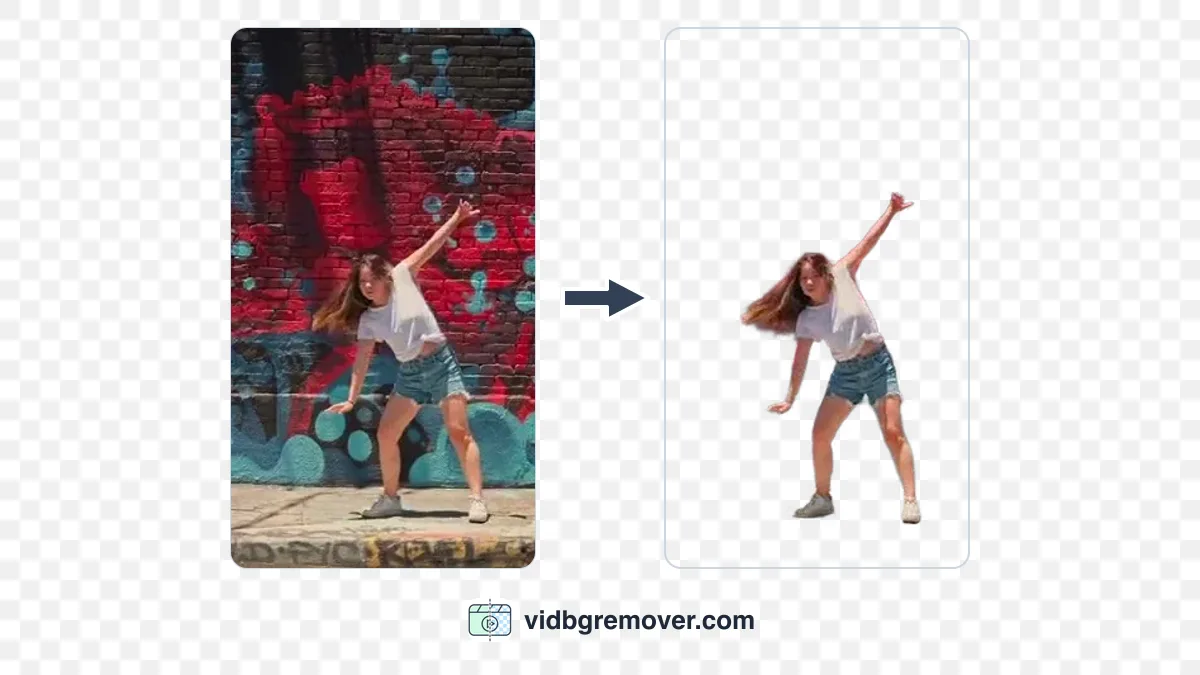
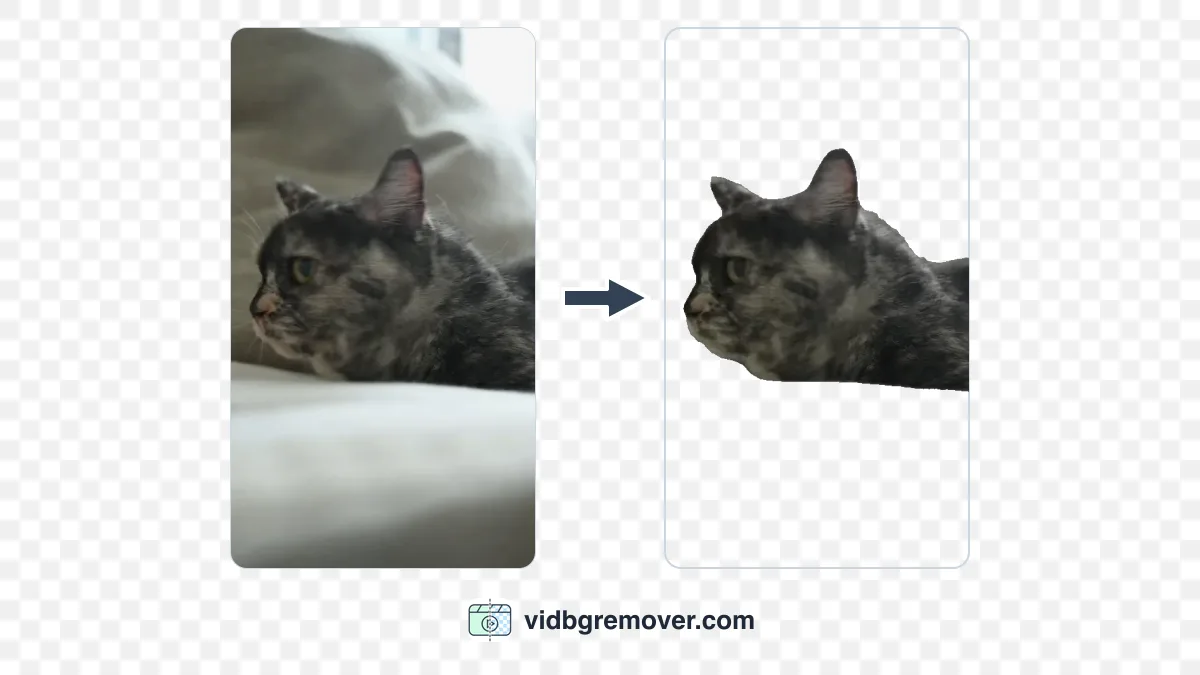
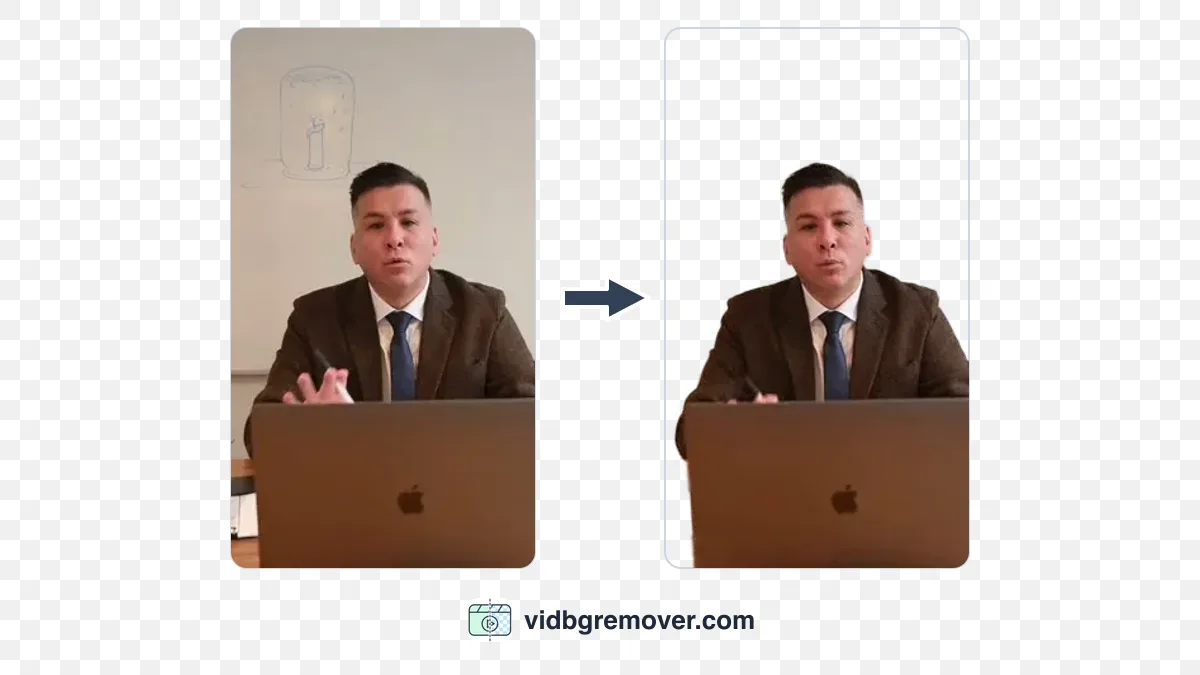
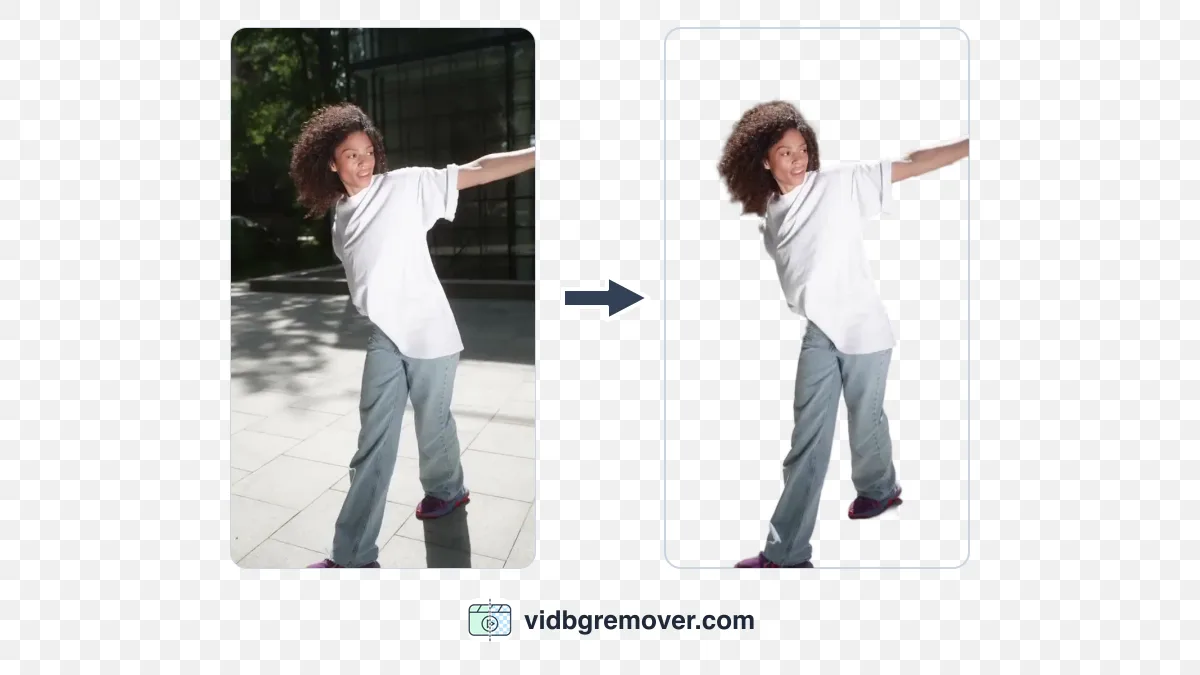
Drag the slider to compare the original footage with the AI cutout. Every clip below is unedited output from this Final Cut Pro background remover alternative.

Fast-Moving Subjects
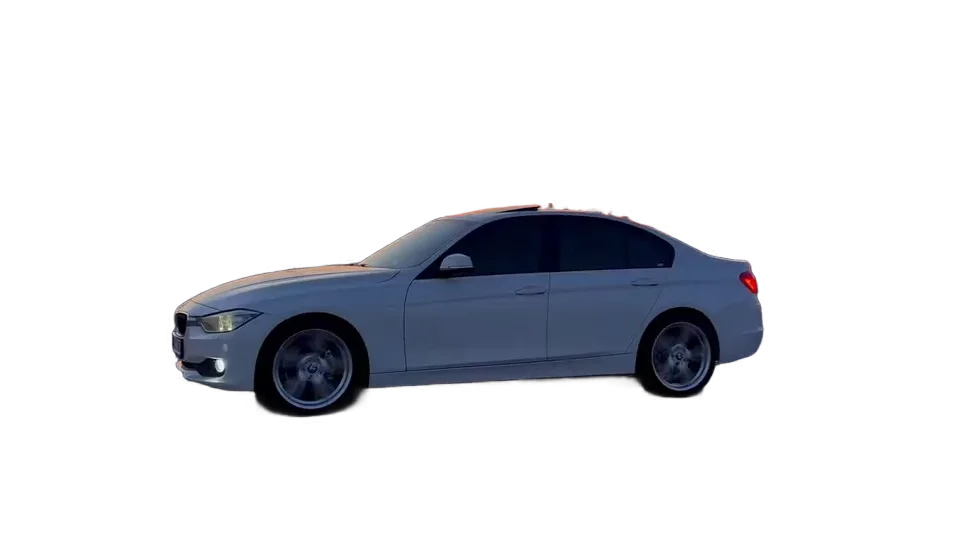
Moving subjects with clean, stable edges — inspect the result before using it in a finished edit.


Animal Clips
Extract pets and animals for overlays, social edits, and compositing in Final Cut Pro.

Product Footage
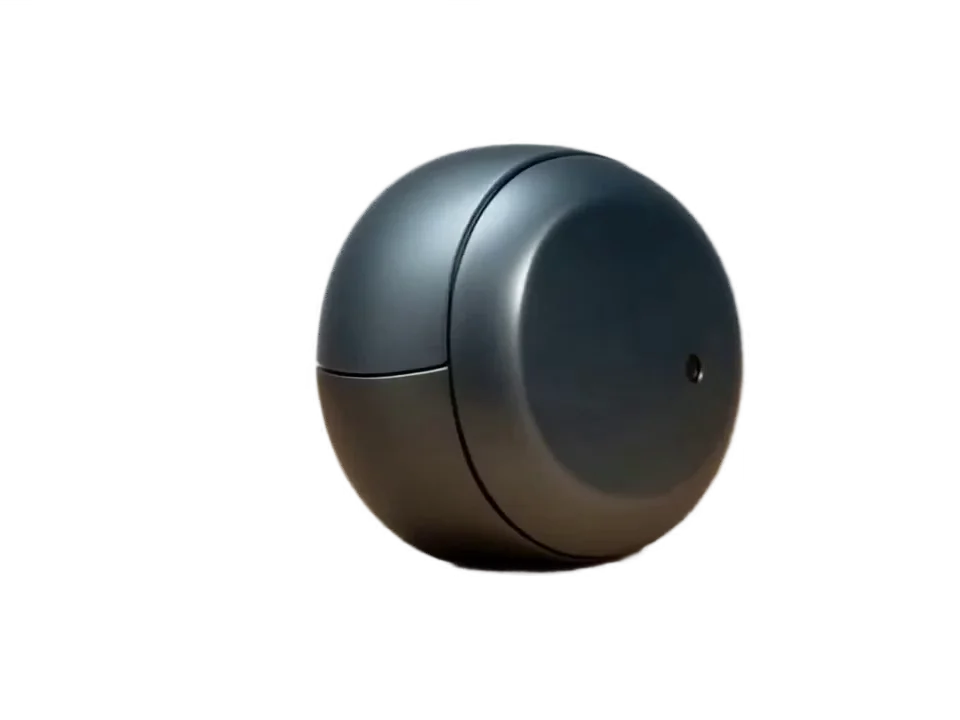
Isolate products for clean overlays, product videos, and timeline compositing.


Uneven Green Screen Lighting
Compare what this Final Cut Pro alternative makes of wrinkles, uneven lighting, and a patchy green background.
Priced Per Clip, Not Per Editor
Final Cut Pro is a complete editor, available as a one-time Mac purchase or through Apple Creator Studio. This Final Cut Pro background remover alternative charges per clip: about $2.50 for 30 seconds in Basic mode, credits from $9.9, no subscription.
Starter
Includes
- 240 credits
- ~120s Video Background Removal (Basic)
- Credits never expire
- Ads-Free Experience
Creator
Includes
- 960 credits
- ~480s Video Background Removal (Basic)
- Credits never expire
- Ads-Free Experience
Pro
Includes
- 3,000 credits
- ~1,500s Video Background Removal (Basic)
- Credits never expire
- Ads-Free Experience
Max
Includes
- 12,000 credits
- ~6,000s Video Background Removal (Basic)
- Credits never expire
- Ads-Free Experience
Final Cut Pro Background Removal: Common Questions
Have another question? Contact us by email.
Yes. Final Cut Pro can isolate a subject without a green screen using Magnetic Mask, which uses machine learning and then analyzes the clip; it is a timeline-based editing workflow that may need selection refinements, rather than a one-upload online pass. VidBG Remover is a complementary Final Cut Pro alternative for a standalone cutout.
Add the clip to the timeline, apply Magnetic Mask for ordinary footage or Green Screen Keyer for chroma-key footage, analyze the clip, and refine the selection in the viewer. For a more convenient standalone pass, this Final Cut Pro alternative takes one upload: review the automatic result, then download a transparent MOV for Final Cut Pro.
Final Cut Pro has Magnetic Mask, which uses machine learning to isolate people, objects, and shapes from a background and apply the mask across a clip. It is a built-in editing feature with analysis and refinement controls, while this Final Cut Pro background remover alternative produces a transparent export online with less setup for a standalone clip.
Choose an alpha-capable export format such as ProRes 4444 when you need to preserve transparency, then verify the exported file in the destination editor. VidBG Remover exports a MOV with ProRes 4444 and alpha by default for a direct Final Cut Pro handoff.
Yes. VidBG Remover is a convenient Final Cut Pro alternative for the background-removal step, not for editing the whole project. Upload ordinary footage once in the browser, let the AI create the first cutout, and bring the transparent MOV back to Final Cut Pro for the rest of the edit.
Yes for the MOV workflow: export a transparent MOV with ProRes 4444 and alpha, then import it into Final Cut Pro as a transparent clip. WebM VP9 with alpha is intended for compatible web and browser workflows and is not guaranteed to import natively into Final Cut Pro.
No. VidBG Remover replaces the background-removal step, not the editor. Use Final Cut Pro for cutting, color, audio, effects, compositing, and delivery; use this Final Cut Pro background remover alternative when you want a focused browser workflow that returns a transparent clip to that timeline.
Upload MP4, MOV, or WebM up to 200MB. Signed-in users can process clips up to 60 seconds; the built-in trimmer cuts longer videos to the segment you need. The result can be downloaded as a transparent MOV or WebM, depending on the workflow.
More AI Video Tools
Blog
Create a Transparent Presenter Overlay for Video Lessons
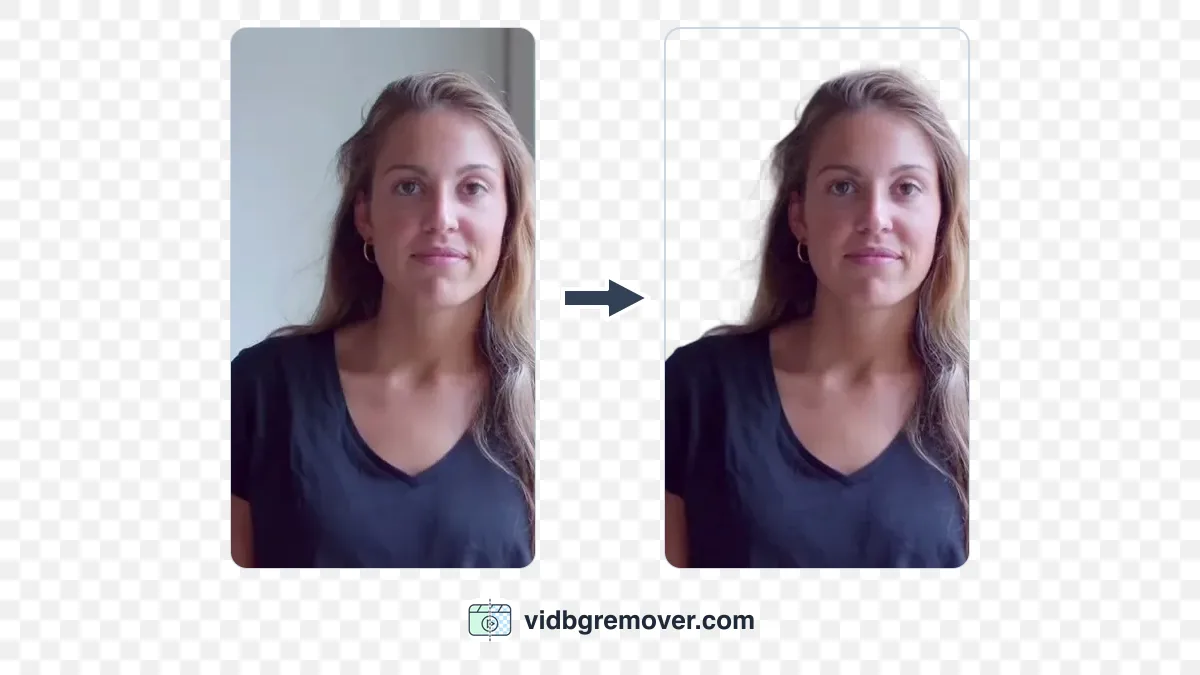
Create a transparent presenter overlay for a lesson. Sync and cut the camera with your screen capture, remove its background, and overlay it in your video editor.
Video Background Removal: Fix Flicker and Missing Hair
Edges flickering or hair disappearing after video background removal? Check the source, cutout, and export in order, then decide what to fix or reshoot.
How to Make a Video Background Transparent: Export Guide
Learn why a transparent video can look black, choose an alpha-compatible format, and check that your target app reads the transparency.
How to Make a Transparent GIF Sticker for Social Media
Learn how to make a transparent GIF sticker from a video or existing GIF, then use it in chats, social posts, stories, and video edits.
How to Remove a Background from an MP4 Video Online
Upload an MP4 directly to remove its background. Learn how to review the cutout and choose between a finished MP4 and a transparent export.
How to Remove a Video Background Without a Green Screen
Remove a video background without a green screen. Learn which footage works, how to review the cutout, and when AI removal or chroma key is the better fit.
Remove Your Video Background — Then Return to Final Cut Pro
Upload a clip to this Final Cut Pro background remover alternative and get a transparent MOV ready for your timeline in minutes.