
Change Video Background to White — Free Online


Choose a new background
Preview and change backgrounds freely. Final MP4 exports use your daily limit.
JPEG, PNG or WebP, up to 10MB
Or try one of these backgrounds
Why Use a White Background for Your Video?
White gives your subject a neutral backdrop and produces a standard MP4 for product pages, lessons, and social posts.
Check Marketplace White Background Requirements
When a marketplace asks for a white backdrop, start with #FFFFFF. Check its framing, duration, and other listing rules separately.
Show Product Details on a White Background
Remove visual clutter around packaging, objects, and hands so shoppers can focus on shape, color, and surface details.
Keep Catalog Videos on the Same White Background
Put clips recorded in different places on the same white backdrop, so every item in your catalog feels like it belongs to the same collection.
Use a White Background for Courses and Presenters
Give talking-head footage a neutral background for lessons, explainers, interviews, and team updates without rearranging the room.
Export a White Background Video as MP4
The white background is baked into the video, so viewers do not need alpha-channel support. Download an H.264 MP4 for product pages, social uploads, and website embeds.
Keep Transparency for Another Project
White is a finished backdrop, not an editing asset. If you plan to composite the subject yourself, use our video background remover for transparent WebM and MOV exports.
See the Original Clip Next to Its White Background
Drag each slider to compare the footage you have with the white-background video you can export. These examples use the same subjects and frames before and after processing.


Product Videos on a Clean White Backdrop
Keep attention on the product and the hands presenting it instead of the original setting.


White Backgrounds for Talking-Head Videos
Replace the room with a neutral backdrop while the presenter keeps speaking and gesturing.

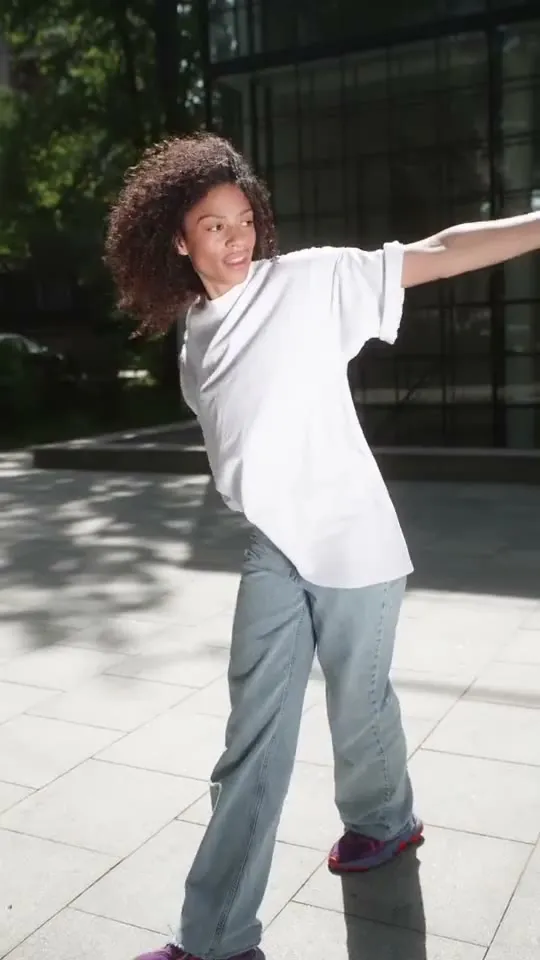
Full-Body Movement on a White Background
Check how the cutout follows gestures and full-body motion across the clip before exporting.


Hair Detail on a White Background
A light backdrop makes dark edge artifacts easy to spot, so you can inspect fine hair and soft transitions in the preview.
How to Make a Video Background White
Start with white already selected, then check the result before exporting. No green screen, white backdrop, or manual mask is required.
Upload Your Video
Choose an MP4, MOV, or WebM up to 200 MB and 60 seconds. The white preset is selected for you in the background slot.
Preview the White Background
AI separates the subject from the original backdrop. Review the white-background preview, especially hair, product edges, and fast movement.
Export Your MP4
Check your daily background-export allowance, then download the finished MP4 with the white background baked in.
Where a White Video Background Is Useful
Use white when the subject should carry the story and the background should stay neutral across a product page, catalog, lesson, or social post.


Use a White Background for Storefront and Catalog Clips
Footage from different shoots makes a product collection feel inconsistent, while the setting competes with the item you want people to inspect.
Place products on the same pure white backdrop for category pages, product demos, and sales sheets. Check each marketplace's rules separately: background color is only one part of an image or video specification.
Change Your Video Background to White

Use a White Background for Fashion and Social Clips
A busy location can pull attention away from clothing, accessories, movement, and the person presenting them.
Use white for try-on clips, fashion details, and simple social videos where the subject needs to stand out without a themed set.
Change Your Video Background to White

Keep Social Movement in Focus
A room, street, or busy set can compete with the dancer or presenter in a short social clip.
Put full-body movement against white for dance clips, transitions, and short social videos. Review arm and hair edges in motion before exporting.
Change Your Video Background to White

Match Presenter Clips to White Slides
A room behind the presenter can look out of place beside white lesson slides, especially across recordings.
Replace the room with white to fit your slide layout. Before exporting the MP4, check hair, shoulders, and light clothing against the new background.
Change Your Video Background to White

Unify Interviews from Different Locations on White
Interviews from different rooms can make a compilation look uneven, even when the framing is similar.
Put each speaker on the same white backdrop for company updates, training, and interview compilations. Preview hair and shoulder edges, then export a standard MP4.
Change Your Video Background to WhiteWhen to Choose a White Video Background
Choose the output that fits the next step for your clip: publish it on white, composite it yourself, or give it a branded setting.
| Decision | White Background | Transparent Background | Custom Image or Color |
|---|---|---|---|
| Best For | Product, catalog, and presenter clips | Your own editing pipeline | Brand scenes and campaign variations |
| Final Look | A neutral #FFFFFF backdrop | No background pixels | Your chosen image or solid color |
| Ready to Share | Yes, as a finished MP4 | Add a background before sharing | Yes, as a finished MP4 |
| Standard Player Compatibility | Plays like an ordinary video | Alpha support varies by player | Plays like an ordinary video |
| Plain-White Requirements | Start here when a plain white backdrop is requested | Add white during a later edit | Choose white as the custom color |
Pricing for White Background Video Exports
Try the free tier on your own clip first. If you need more processing, buy a credit pack without starting a subscription.
Starter
Includes
- 240 credits
- ~120s Video Background Removal (Basic)
- Credits never expire
- Ads-Free Experience
Creator
Includes
- 960 credits
- ~480s Video Background Removal (Basic)
- Credits never expire
- Ads-Free Experience
Pro
Includes
- 3,000 credits
- ~1,500s Video Background Removal (Basic)
- Credits never expire
- Ads-Free Experience
Max
Includes
- 12,000 credits
- ~6,000s Video Background Removal (Basic)
- Credits never expire
- Ads-Free Experience
White Video Background — Frequently Asked Questions
Have another question? Contact us by email.
Yes. The selected white preset is #FFFFFF, and it is composited behind the cutout subject. The exported MP4 is opaque, with no checkerboard or alpha channel.
No. A white-background video already has white pixels behind the subject and plays like an ordinary video. A transparent video keeps an alpha channel so you can place it over your own design later. Use the Video Background Remover when you need transparent WebM or MOV output.
It can help when a marketplace asks for a plain white backdrop, but background color alone does not guarantee compliance. Check the platform's current rules for framing, resolution, duration, file format, logos, shadows, and other content before publishing.
The AI separates the subject from the original background; it does not relight the subject or recreate studio shadows. Existing shadows may be softened or removed. Edge results vary with contrast, lighting, motion, and fine detail, so preview hair, transparent packaging, and contact shadows on your actual clip before exporting.
No. You can start with an ordinary video recorded in a room, office, or another setting. AI removes the existing background and places the subject over the white preset.
Yes. The finished export is an H.264 MP4 with the white background baked in, so it works in standard video players, social uploads, and website embeds.
You can upload MP4, MOV, or WebM files up to 200 MB, with clips up to 60 seconds long.
Background removal typically takes 2-3x the video duration, and compositing adds a short extra step. Free tasks may queue when the service is busy. Credit-pack buyers have priority over free tasks that have not started.
Free videos are available for 24 hours; videos uploaded after purchasing a credit pack are available for 7 days. Files are then scheduled for automatic deletion. We never train models on your content.
Need a custom image or another solid color? Try the Video Background Changer. Only need to remove an MP4 background without adding white? Read our MP4 background removal guide.
Ready to Make Your Video Background White?
Upload a clip with white already selected, preview the result, and export a finished MP4. No credit card needed.