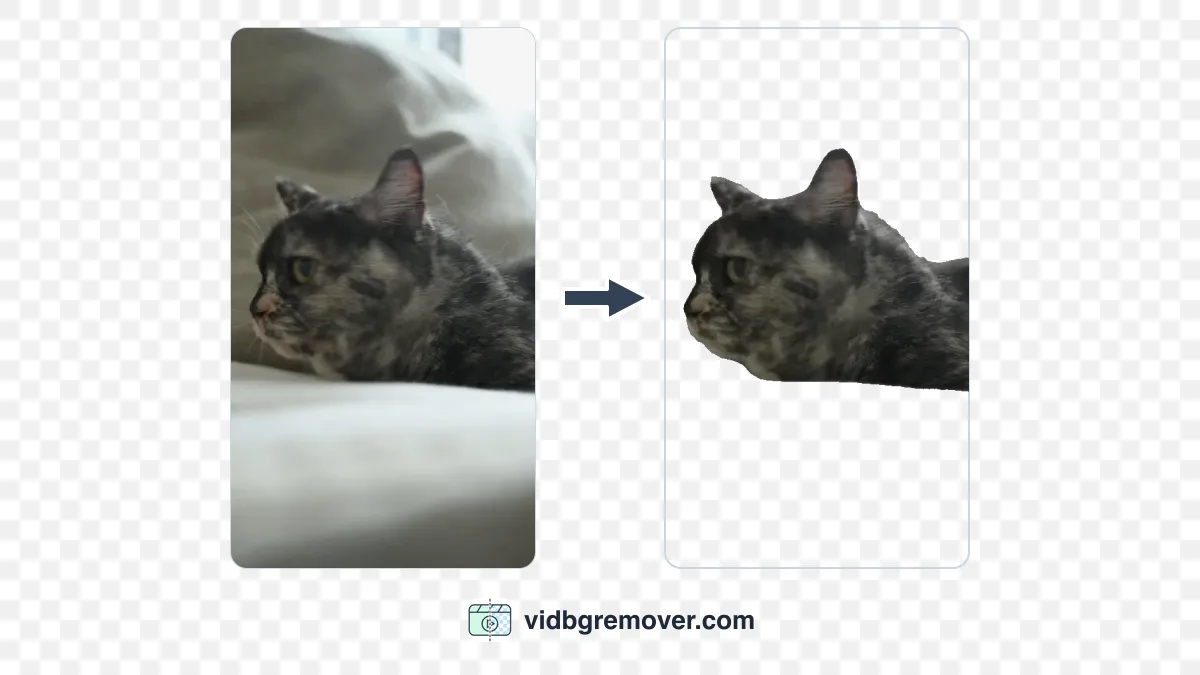
A reaction clip with its original background appears as a rectangle in the chat. Remove the background and the same clip becomes a sticker. The person, pet, or logo sits directly on the chat, the post, or the video you're editing.
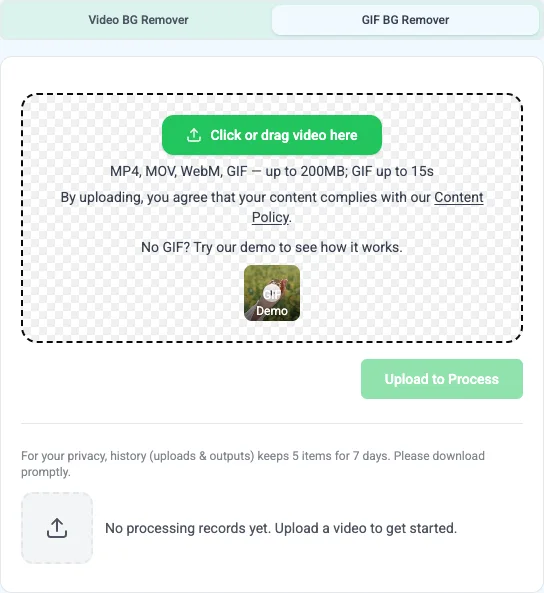
You can make one from an existing GIF or from a short MP4, MOV, or WebM clip. Upload the source to a GIF background remover, let the AI separate the subject, and export the result as a transparent GIF.
The workflow is three steps:
- Upload a short video or GIF.
- Let the AI make the background transparent.
- Download the GIF and use it in a chat, social post, or edit.
The steps are easy. The result depends on the clip you choose, the limits of the GIF format, and how the platform handles your upload. The following sections explain what to look for.
What You Need Before You Start
Pick a clip with one clear subject doing one recognizable thing: a wave, a nod, a jump, a laugh, a pet trick, a quick product movement. It should still make sense playing on repeat, and the subject should fill a reasonable part of the frame, because stickers get viewed small.
The current GIF workflow accepts clips up to 15 seconds and files up to 200MB. You can upload an existing GIF directly, or a video in MP4, MOV, or WebM.
As with any background removal, the cleaner the source, the cleaner the cutout: good contrast between subject and background, steady lighting, no heavy motion blur, nothing crossing in front of the subject. The full checklist is in our MP4 background removal guide. If your source is ordinary phone footage of one person or pet, you're usually fine.
How to Make a Transparent GIF in 3 Steps
1. Upload your video or GIF
Open the GIF background remover and upload the source. If the moment you want is a short stretch inside a longer video, trim it out first. A shorter clip is faster to process and easier to check.
2. Let the AI make the background transparent
Start processing and wait. You don't need to trace the subject frame by frame.
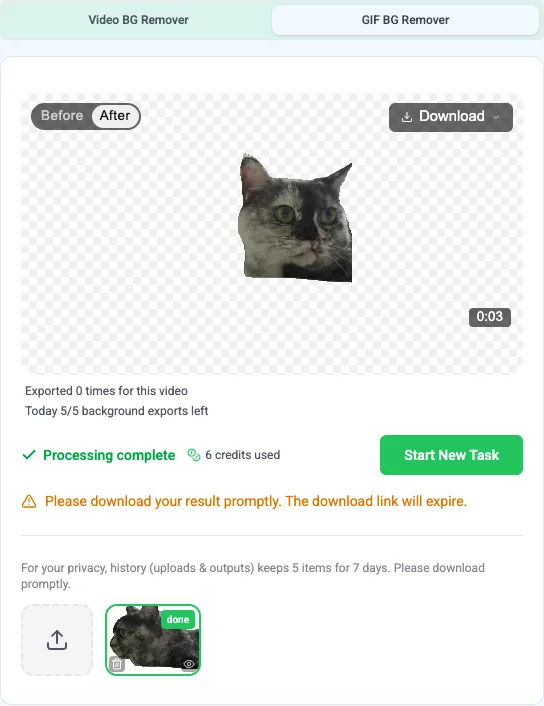
When the result is ready, play the entire animation to check for problems, instead of judging it from a single frame. The usual weak spots are hair, fingers, fast turns, moving shadows, and the first and last frames. If one stretch keeps flickering or fraying, trimming it out usually looks cleaner.
3. Export the transparent GIF
Download the transparent GIF once the animation looks right.
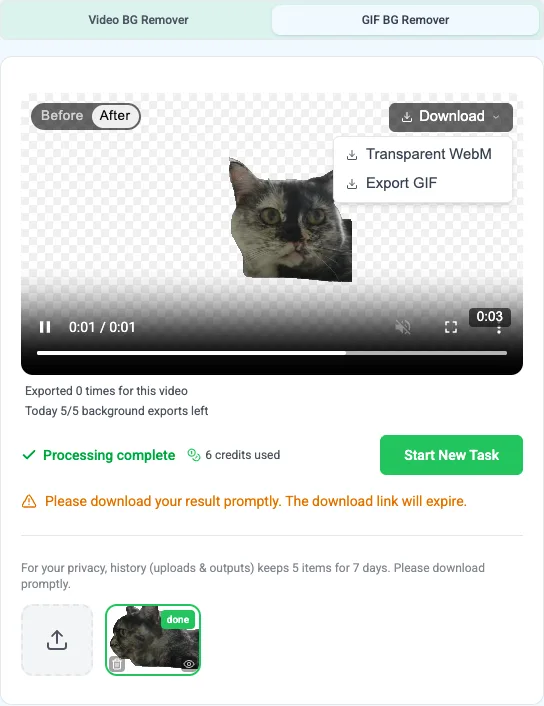
Choose GIF when the goal is a small file you can send in a chat or upload to social apps. If it's headed for a video editor or a web page, export WebM instead: it keeps smoother edges and works better in editing software. The same page offers both.
Where a Transparent GIF Actually Works
A transparent GIF is just a file. Whether it behaves like a sticker depends on where you upload it, and platforms change these rules often, so treat the app's own upload dialog as the final word. That said, the current landscape looks like this.
Chats: the easy win
WhatsApp, Telegram, iMessage, and Discord all let you send GIF files in a conversation, and they play inline. This is the most reliable place for a custom reaction, a pet clip, or a personal emoji.
Note that chat apps also have separate sticker systems, and those are different workflows. WhatsApp and Telegram sticker packs use their own formats and submission flows, not GIF files. Sending your GIF as a message works today; adding it to a sticker pack is a separate project.
Social posts and stories: read the fine print
The sticker pickers in Instagram and TikTok stories don't read files from your camera roll. They search online GIF libraries such as GIPHY. Your GIF only shows up there after you upload it to GIPHY, which means setting up a channel of your own.
If you just want the sticker look in one story or post, there's a simpler route: place the GIF over your content in a video or design editor and export the finished piece.
Feed posts have a different catch: some platforms convert uploaded GIFs to video, losing the transparency in the process. If you post a transparent GIF to a feed and it comes back with a solid background, that's why. For feed posts, decide the background first. You can add one with the video background changer and export a normal MP4, or composite in an editor.
Video edits and websites
In an editor, import the GIF above your main video and position it like any overlay. For longer projects, a transparent WebM is usually the better working file, so keep one alongside the GIF. For a website, test the file on the actual page. A GIF that looks fine on your computer may still exceed the site's upload limit.
What GIF Can and Can't Show
Three properties of the format explain most surprises. None of them means your background removal failed.
- GIF stores 256 colors per frame. Flat designs, logos, and cartoons survive this well. Photos and soft gradients may come out grainy or banded, especially skin tones and skies.
- GIF transparency is on or off. Every pixel is either fully visible or fully invisible; there are no soft edges. Fine hair and soft shadows end up jagged, or keep a thin halo of the old background. A slightly larger subject or a simpler shape hides this better than any setting.
- Size grows fast. File size climbs with duration, dimensions, and detail. The export already keeps things lean at 15 frames per second and up to 480 pixels on the long side, but the biggest lever is still trimming the clip to the useful moment.
How to Get a Better Sticker Result
Background removal is only half of what makes a sticker work. It also has to read well at the size of a thumbnail.
- One subject, one action. A wave or a nod reads instantly; a busy scene reads as noise when it's small.
- Keep the subject large. Fine details vanish at chat-sticker size. If the subject is small in the original frame, crop before processing.
- Test on light and dark backgrounds. People will see the sticker in different themes. Stray pixels and halos that are invisible on white show up immediately on black.
- Cut the dead frames. A camera adjustment or a pause at the start makes the whole sticker feel slow.
Common Problems and Fixes
There's a white or black rectangle behind the subject
Either the file wasn't the transparent export, or the place you're viewing it doesn't show transparency. Download the transparent GIF itself rather than a screenshot, then test it over a colored background in an editor. If a platform shows a solid background after upload, it probably converted your GIF to video; see the feed-post note above.
The edges look jagged or have a halo
GIF doesn't support partial transparency, so jagged edges don't necessarily mean the cutout went wrong. A clearer source can help, as can a larger subject or a simpler silhouette, but fine hair may still look jagged.
Part of the subject disappears
The AI mistook a shadow, dark clothing, or a thin object for background. If it only happens during one movement, trim that movement. The MP4 guide's troubleshooting section covers the general fixes.
The GIF is too long or too large to upload
Stay within the workflow's 15-second and 200MB limits, then trim further. A two-second loop of the right moment beats an eight-second clip almost every time, and it downloads faster for everyone you send it to.
The platform won't accept it as a sticker
Some platforms have their own format and submission requirements for stickers. If that sounds like more trouble than it's worth, sending the GIF directly in a chat often works just as well.
It looked fine on my computer but wrong after uploading
Platforms resize, recompress, and convert animated files. Compare the uploaded version with your original. If the platform changes the file, prepare your final version in the dimensions and format its upload flow expects.
FAQ
Can I make a transparent GIF from an MP4 video?
Yes. Upload the MP4 to the GIF workflow, let the AI separate the subject, and export a transparent GIF. The workflow also accepts MOV, WebM, and existing GIF files.
Can I use an existing GIF as the source?
Yes. Upload it directly, review the full animation after processing, and download the transparent result.
Can I use a transparent GIF as a sticker on any social platform?
Not always. You can usually send it in chats that accept GIFs. Story sticker pickers search online libraries like GIPHY instead of your files, and sticker packs often have their own format and submission requirements.
Can I put a transparent GIF over a video?
Yes, if the editor supports transparent GIFs. Import it as an overlay above the main video. If your editor handles video better, export WebM from the same workflow.
How long can the GIF be?
The current workflow accepts clips up to 15 seconds and files up to 200MB. Shorter is better: stickers loop, and small files send faster.
Why does the GIF look transparent in one app but not another?
Apps use different previews and import rules, and some convert GIFs to video on upload. Test the downloaded file in the destination app, or over a colored background in an editor, before you assume the export went wrong.