
If hair disappears or the outline flickers after background removal, check the original video first, the video cutout second, and the exported video third. Compare the same moment in each version. That tells you whether to change the footage, try another processing option, or fix how the result is displayed.
An edge can look fine in a paused frame and still flicker during playback. Use one short section for all the checks below, with a little footage before and after the problem.
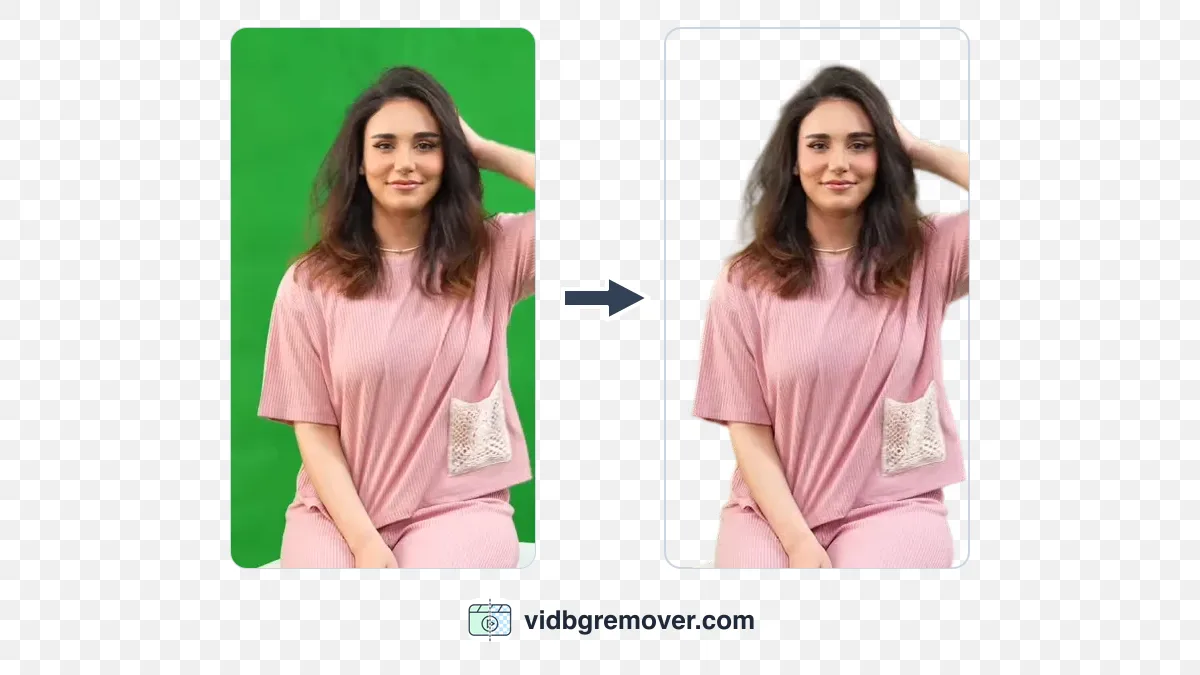
Identify the Video Background Removal Problem
Watch at normal speed first. Then pause or step through the troublesome movement, if your player allows it.
| Symptom | First thing to check | What to do next |
|---|---|---|
| Hair or a shoulder edge pulses while the subject barely moves | Is that edge stable in the original at the same time? | If it is, inspect the video cutout on a plain background. |
| Hair disappears during a head turn or a hand movement | Does the original show distinct strands, a blurred patch, or hair hidden behind a hand? | Try a clearer source or another take if the detail is already hard to see. |
| The whole image brightens and darkens | Does the original do the same? | Check the recording's lighting and exposure before blaming background removal. |
| A dark or light fringe appears around the subject | Does it change when you change the background underneath? | Check the exported file in an editor that supports its transparency. |
| The preview looks acceptable, but the downloaded file has a solid black background | Is the player displaying transparency against black? | Put the file above a colored layer in a compatible editor. |
An outline that changes erratically between frames is often called edge chatter. See Adobe's Roto Brush guidance. It differs from a consistently soft edge or an entire video that stutters during playback.
1. Check the Original Where the Video Cutout Fails
Open the recording straight from the camera or phone, if available. Find the same head turn, hand gesture, or other movement where the video cutout breaks up. Compare at a similar viewing size; a tiny preview can hide problems that appear when enlarged.
Look for these clues:
- Blur during movement: hair blends into a smear when the head turns, or fingers lose their outline during a wave.
- Poor separation: dark hair sits against a dark wall, or a shoulder blends into a similarly colored background.
- Compression damage: blocks or crawling noise appear around fine detail, especially in a copy downloaded from a messaging app or social platform.
- Changing light: the face and background become brighter or darker together.
- Occlusion: a hand, prop, or another person covers the hair or part of the body.
These observations suggest an input problem; they do not prove that the background-removal tool is working correctly. A difficult source and an imperfect video cutout can occur together. Check whether the source contains a clear edge to preserve.
Use the original file rather than a compressed copy. Renaming a file or converting a blurry clip to a higher resolution cannot recover hair detail that wasn't clearly captured. For upload and format help, see how to remove a background from an MP4 video.
2. Check the Video Cutout Before Changing the Export
In VidBG Remover, use the Before and After views to find the affected section. For closer comparison, open the original and downloaded video cutout in an editor and line up the same movement. If you trimmed the start of the clip, account for that offset: five seconds into a trimmed result may correspond to a later time in the original.
Put the video cutout over a plain light background, then a plain dark one. You can do this with background layers in an editor that supports the file. Play the same section on both. Lost strands and leftover background are easier to spot on a plain color than on a busy scene.

- If hair visible in the original vanishes and reappears in the video cutout on both backgrounds, focus on the background-removal result.
- If a soft edge stays soft throughout the movement, judge whether it is acceptable at the final viewing size. Softness alone is not flicker.
- If the outline is steady but a fringe becomes obvious on one background, continue to the export check below.
VidBG Remover offers Basic and High Quality processing for video background removal. High Quality requires signing in and uses more credits. If you choose to compare them, use the same source section and background, and watch the whole movement. Choose the background-removal result that preserves the needed detail; High Quality may not recover hair that's indistinct in the source.
Avoid repeatedly processing the same file without changing anything meaningful. After comparing quality options for background removal, try a clearer take instead of another identical attempt.
3. Video Background Removal: Is Detail Missing, or Is Playback Wrong?
Download the video cutout as WebM, or use Export MOV for ProRes 4444. Open it in an editor that supports the file's format, codec, and alpha channel. The alpha channel stores transparency. Place a solid-color layer underneath the video. A black area in a standalone player can be how it displays transparent pixels.
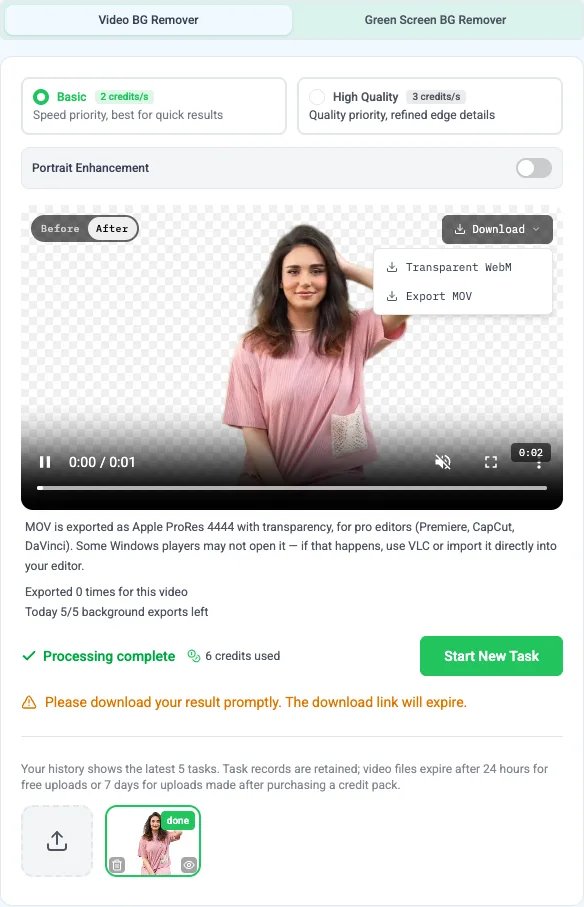
The codec matters as well as the extension: Apple documents alpha support for ProRes 4444. A .mov extension alone doesn't prove that the file contains transparency. For the full export workflow, see how to make a video background transparent.
If the preview looks right but the imported file does not, check whether your editor supports the format and handles its transparency correctly. Incorrect handling of transparency can produce a fringe. Fixing that display problem won't restore strands that are already missing after background removal. Follow that editor's documentation rather than adding another background-removal effect to a clip that is already cut out.
If the entire clip jumps or stalls in only one player, try another compatible application before concluding that the edges flicker. If only the outline changes while the face and body move smoothly, return to the checks in step 2.
Finally, play the result against your intended background. High contrast can expose an edge defect that a similar-colored scene hides. A background change may make the result usable, but judge it in motion at the size your audience will see. If you need a finished video with an image or color behind the subject, use the video background changer.
When a Poor Video Cutout Calls for Different Footage
Use another take when the important movement is blurred, the subject repeatedly disappears behind something, or the hair merges into the background. If only one brief gesture fails, trim it out in your editor when the story still works without it.
For a reshoot, choose a plain background that clearly contrasts with the hair and clothes. Light the subject evenly, keep the camera steady, and reduce fast turns or gestures. Leave space around the head and hands. Record a short test with the movement you actually need, inspect it for blur, and check the background-removal result before filming the full take. The guide to background removal without a green screen covers recording choices in more detail.
Accept a small loss of loose strands when it is unobtrusive in the finished video and the main outline stays steady. Change the shot or seek manual editing help when hair repeatedly disappears around the face, fingers are cut off, or the edge pulses visibly at normal playback speed. If you see these problems, stop repeating the same one-click process.
When contacting support, note the affected time range, whether the problem is visible in the original, which background-removal option you used, and the export format and application where you see it. “Hair on the left side disappears during the turn at 00:04–00:06” is easier to investigate than “the quality is bad.”