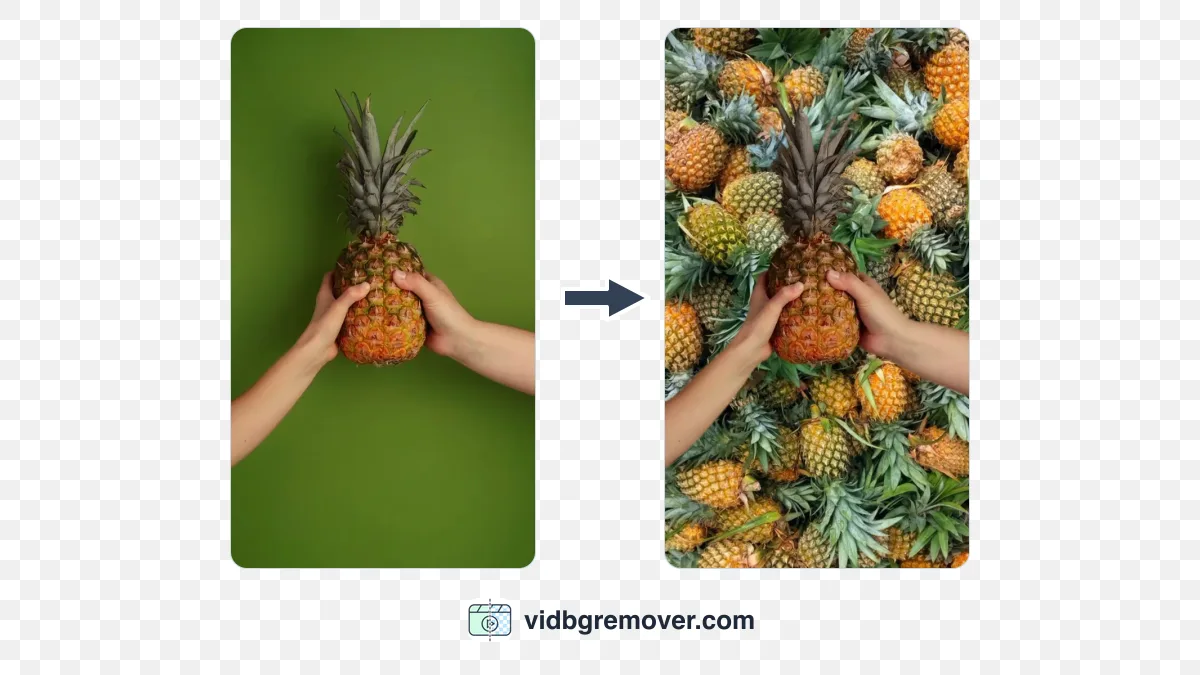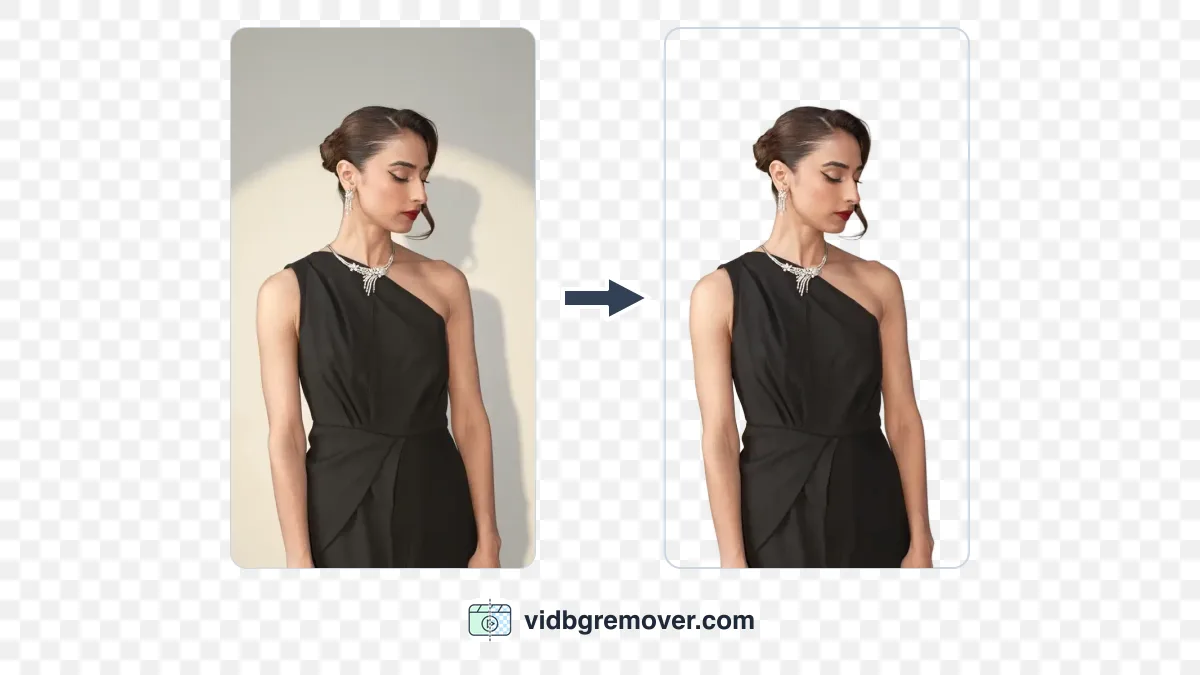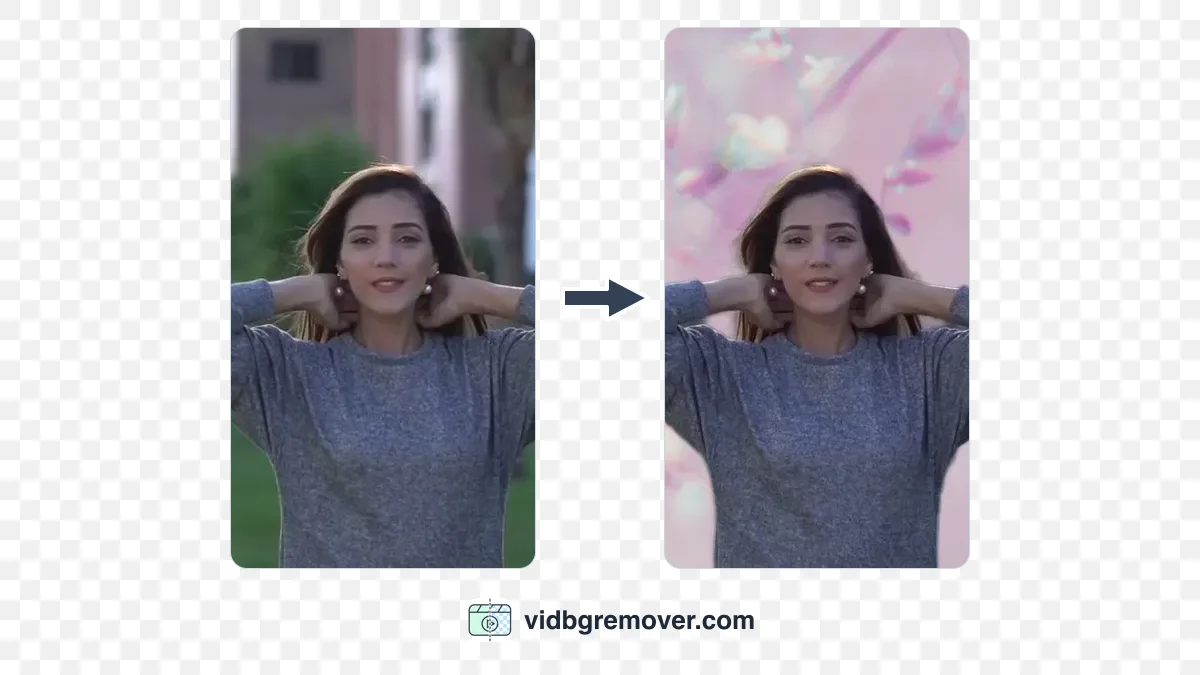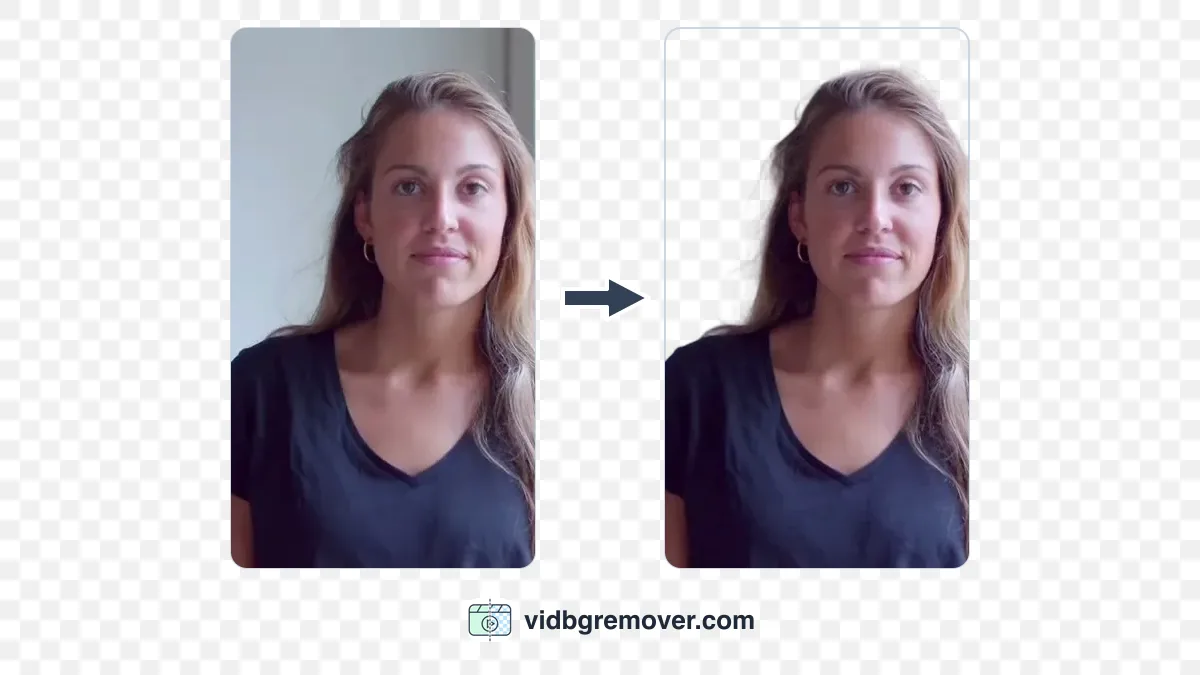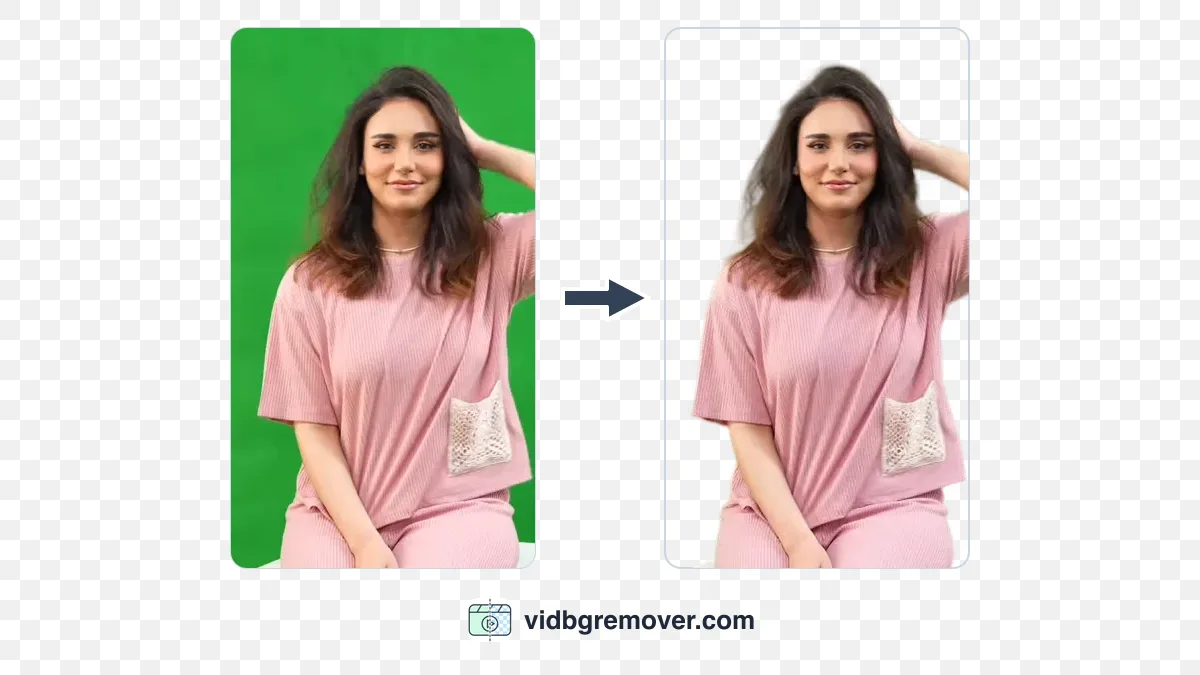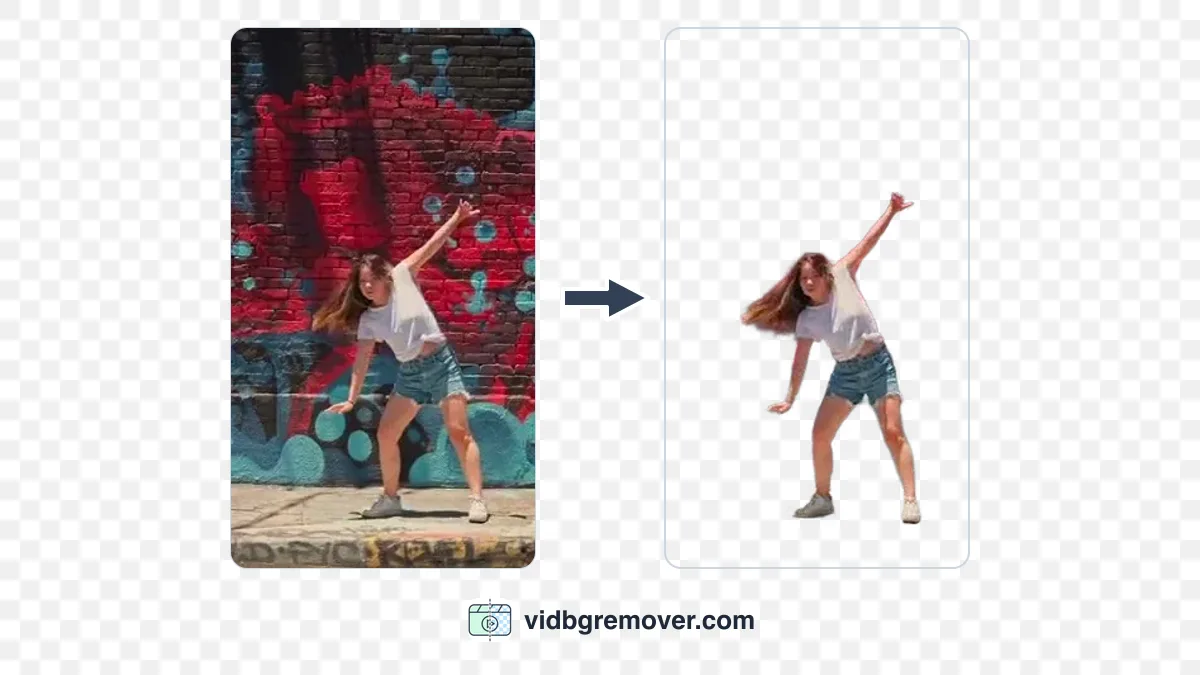
A product clip you have already filmed can be used on a product page, in an ad, or in a social post. Remove what sits behind the item, pick a new backdrop — white for the catalog, a brand color or a scene image for ads — and export an MP4. The background is already composited in the file, so there is no studio to book and no second shoot per backdrop.
One clip can serve several places because it already shows what buyers want to see: the shape, the surface, the hands using it.
What One Clip Can Become
The same clip can go out three ways:
- White for the product page, the marketplace listing, and any catalog that wants the item on a clean backdrop.
- A brand color for social posts, lookbooks, and anything that should match your packaging or your site.
- A scene image for ads, where the product sits in a room, a kitchen, or a styled set instead of on white.

Same footage, three backgrounds, three exports.

How to Change a Product Video Background in 3 Steps
1. Upload the clip you already have
The tool accepts MP4, MOV, and WebM files up to 200MB. Sign in to process your clip. A free account is enough for clips up to 60 seconds, and credits come off by clip length. The built-in trimmer cuts a longer file down to the part you want to keep, so a two-minute phone video can be trimmed and used.
Pick a clip where the product is visible for most of its length. Lift the item, turn it once, and the shape is clear in a few seconds.
2. Choose the background
Pick white, black, or green from the presets, or open the color picker for any solid color. You can also upload your own image: a styled set, a texture, a flat graphic.
Two limits are worth knowing before you choose. The new background is a still image, so it does not move when the camera moves. And it sits behind the subject only: when the product rests on a table, the table usually leaves the frame with the old background.
3. Check the edges, then export the MP4
Preview the result before exporting. Look at the outline of the product, at the fingers if hands are in frame, and at any gap between two items. Then export the MP4, which already has the background baked in. You can export up to five composited MP4s per day, with at least 60 seconds between exports.
If the outline looks wrong, change the background or the clip rather than exporting and hoping the platform fixes it. The flicker and missing hair guide covers the edge cases that come up most often.
What Makes a Product Video Background Swap Easier
What the finished video looks like depends mostly on the footage. Shoot with the swap in mind, even if you are not sure which background you will use.
Light the product, not the walls. Even, bright light on the item gives the model a clear separation between the product and what is behind it. A dark item in a dark room leaves the model almost nothing to separate, and no background swap can bring back detail that was never recorded.
Keep the movement slow and readable. A turn, a lift, a hand reaching in — all easy. Fast spinning, throwing, or a hand passing in front of the product at speed produces motion blur that reads as a ragged edge.
Watch what the item is made of. Matte surfaces (cardboard, fabric, ceramics, most packaging) usually come out clean. Clear glass, mirrors, chrome, and thin straps are where background removal often fails, because those pixels look like a mix of product and room.
Film against something plain if you can. A clip shot against a green backdrop gives the cleanest starting point, but a plain wall or an empty desk works too. If the footage already has a green backdrop, the dedicated green screen workflow is the faster route.

Which Background Goes Where
Pick the background by where the clip will appear.
White is the safest default for product pages and marketplace listings. It keeps the item the only thing in the frame, and it matches what most catalogs look like next to it. White background requirements are not universal, though: they vary by marketplace, category, and region, and the color is only one part of the rule. Check the rules for the marketplace and region you sell in.
A brand color works when the clip will be seen next to your other assets — an email, a landing page, a grid of posts. Use the exact hex value rather than a close match, so the video sits inside your palette instead of beside it. The white background tool is the right starting point if you need that standard look, and the video background changer covers color and image backgrounds in one place.
A scene image carries an ad further than a flat color, because the setting tells the story: the product on a counter, in a hand, in a room that looks like the buyer's. Keep the image simple and slightly out of focus, and the product stays the subject.
Where the Swap Breaks Down
These are the failures worth checking for before you export.
- A shadow that no longer makes sense. The old contact shadow leaves with the old background, so the product can look like it floats. A drop shadow or a slightly darker area in your background image puts it back on the ground.
- Leftover edges at the base. Watch the bottom of the product against a light background, where a thin dark line from the original table can survive. If you see one, shoot the item on a plain surface that is close to your target background instead.
- Hands and fingers. Hands holding the product are a frequent source of soft or flickering edges, since fingers overlap and move fast. Check them frame by frame at full size.
- Transparent or reflective items. Glass, clear plastic, and mirror finishes lose their look without the room reflecting in them. For those, a small reshoot against a plain backdrop is usually faster than cleaning up the cutout.
- A moving camera. Because the new background is still, a handheld push-in or orbit makes the product slide against it. Lock the camera on a tripod when the clip is meant for a background swap.

Do You Need a Green Screen or a Studio?
No. The tool separates the product from whatever is behind it, so a normal room, a kitchen counter, or an outdoor table all work as source footage. A green backdrop helps a traditional keying workflow, and it gives the model a cleaner signal, but it is not a requirement for changing a product video background.
What you do need is a clip where the product is well lit and in focus. That is true in a studio and equally true at a kitchen table with a window on one side.
Several Products from the Same Setup
If you sell a range, film all of it in one session and process the clips in a batch. Paid accounts can queue 2 to 5 videos at once; each clip still counts against the 60-second limit on its own. The per-item credit estimate appears before you start, so a full batch does not come as a surprise on the invoice.
Product Video Background FAQ
Can I keep the background transparent instead of replacing it?
Yes, if you skip the background step entirely. Export a transparent WebM or MOV from the video background remover and composite it over your own footage in an editor. That path ends in an editor; this one ends in an MP4 that already carries the background. The transparent export guide covers the formats and which apps read them.
Does the new background move with the camera?
No. An image background is static. If the camera pans or pushes in, the product moves across the image. Lock the shot down if the background matters.
What formats and how long can the clip be?
MP4, MOV, or WebM up to 200MB. Sign in, and each clip can run up to 60 seconds. Longer footage can be trimmed to the segment you need before processing.
Will a marketplace re-compress the video and ruin the edges?
Many platforms re-encode uploads, and heavy compression softens edges. Start from a high-resolution clip with good contrast between product and background, and do not re-encode the file again before upload. A thin fringe that looks fine on your laptop can disappear after upload.
Is a pure white background required on every marketplace?
No. Requirements differ by marketplace, category, and region, and background color is one rule among several. Read the listing requirements for your market before you export a whole catalog in white.
Can one clip serve several products?
No. Each product needs its own footage, because the cutout follows the subject in the frame. One tripod, one light, and one afternoon can still produce a whole range, which is where batching pays off.